Tables
General information about the Platon Tables section
General Information
The Platon platform uses the PostgreSQL database management system as its database. Initially, this database stores Platon's main system tables. However, developers can freely create any table they wish and store additional data in it. The Platon platform, in turn, takes on the task of saving data to this table system, retrieving data from them, and editing data.
However, due to the large amount of data and the complexity of the table system, the Platon platform offers the user the convenience of accessing this data through the Tables Section.
The main task of the Tables section is to process large amounts of information located on the server (using SQL or API) and display the required data in a virtual table according to the user's wishes. Here, a developer can:
- Display data from a single table in a Platon virtual table;
- Collect and display data from multiple Database tables into a single virtual table in Platon;
- Display other data dependent on one piece of data based on secondary virtual tables.
Section Structure
A separate Tables page is offered to the developer for working with virtual tables. In general, there are several functions, pages, and windows for working with tables, and these elements are discussed below.
Tables Page
When you enter the main tables page, the following view opens:
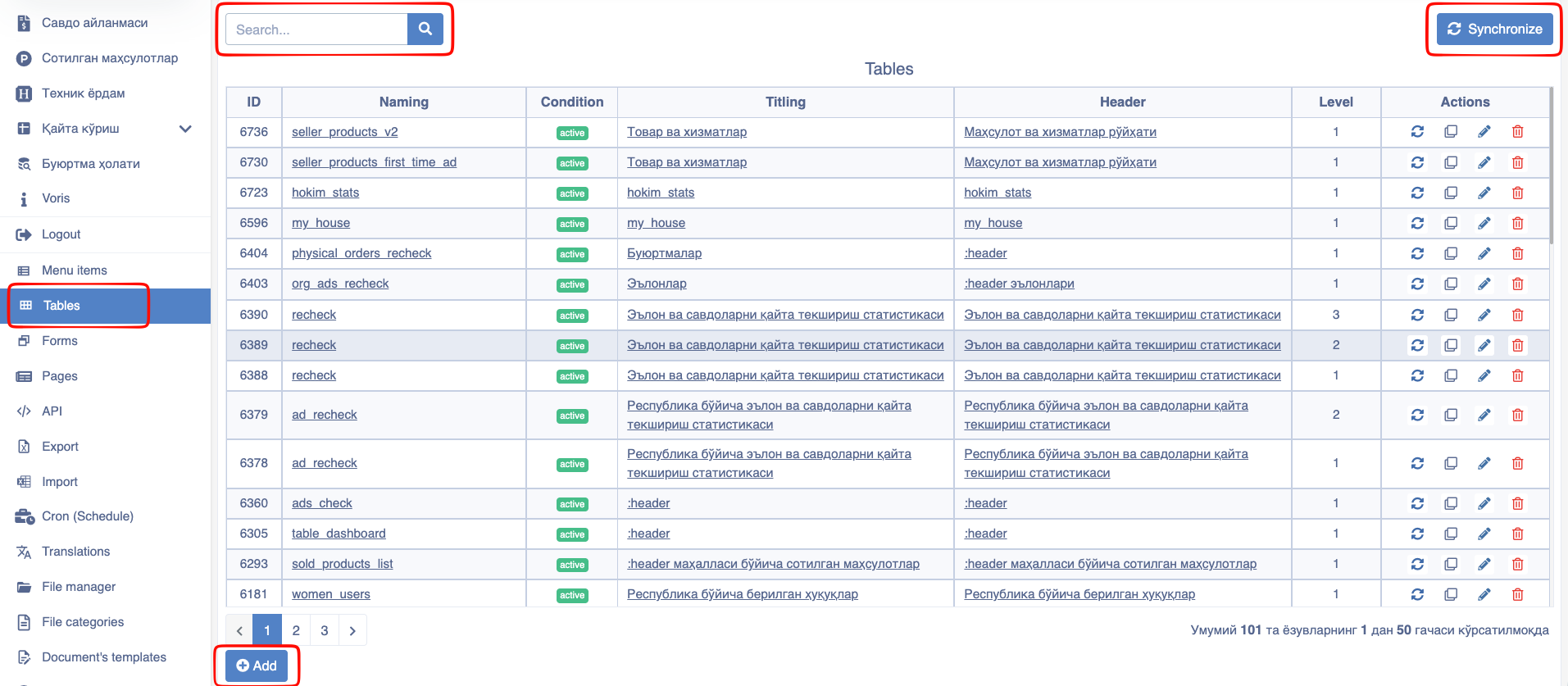
There are main sections you need to pay attention to on this page:
- Search field. Helps to search among virtual tables.
Synchronizebutton. Synchronizes virtual tables with the user workspace.- Tables list. A list of all tables added to the system. Clicking the link in the columns of the list opens the following:
- Naming. Opens the table editing window.
- Condition. Shows the status of table columns (active/hidden/archived).
- Titling. Opens the list of table columns.
- Header. Opens the table view page.
- Level. Reflects the hierarchy of tables.
- Actions. Column for tasks related to the table.
Addbutton. Opens the window for adding a new virtual table.
Add / Edit Table Window
After the Add button is clicked, the platform opens the window for adding a new table:
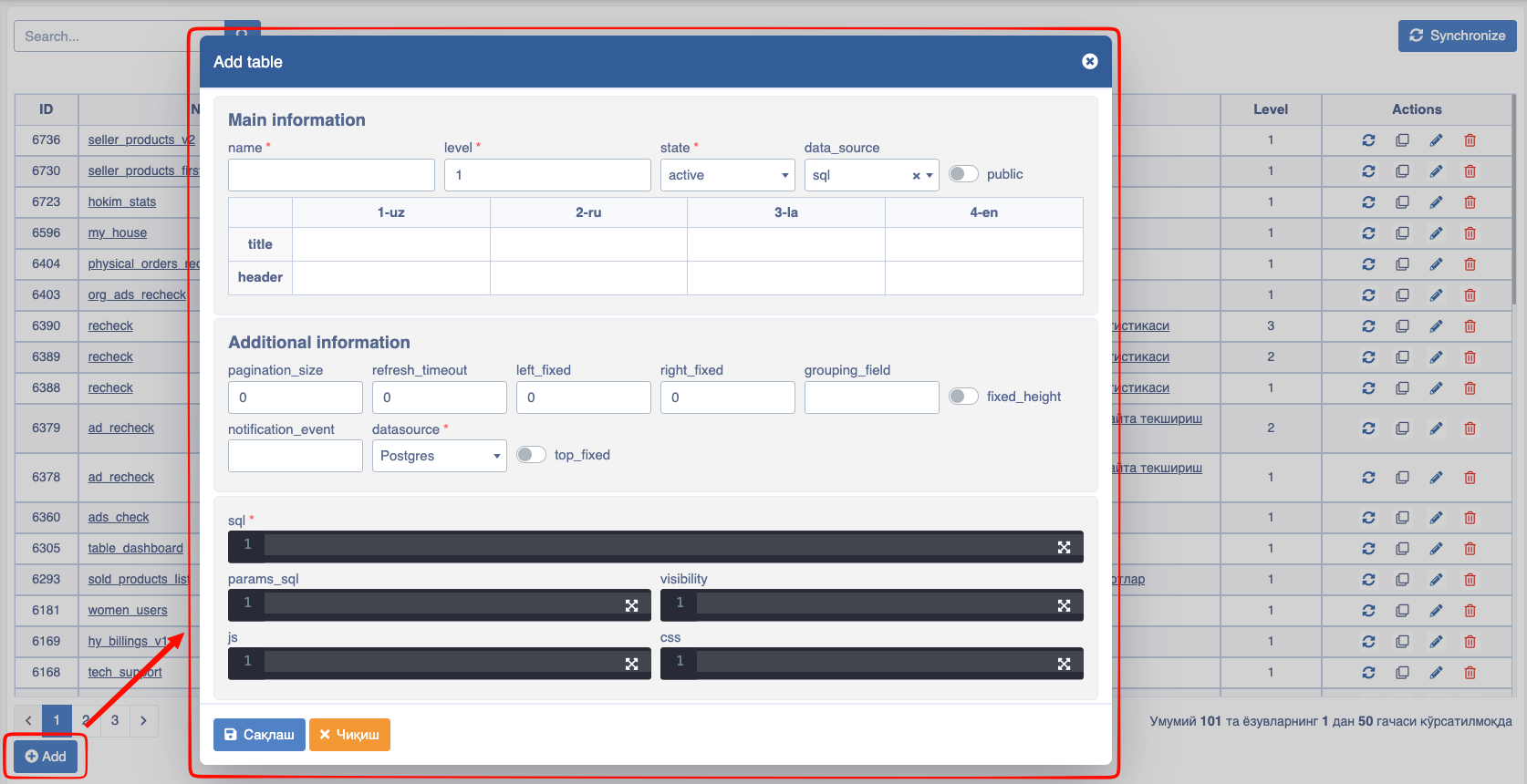
The function of the fields is given below:
- name. The reference name of the table in the platform.
- level. Table level (Information on table levels is provided on this page).
- state. Visibility status.
Pay attention!
The state field appears in all elements of the Platon builder and can be in three forms:
active – switches the current element to a visible state in the system.hidden – switches the current element to an invisible state within the system.archive – archives the current element.
- data_source. Data source.
- public. Make the table public, i.e., show it to unregistered users.
- title. The name of the table in the browser tab.
- header. Table header.
Pay attention!
Title and Header information must be filled in 4 different ways:
1-uz – In Uzbek Cyrillic script.2-ru – In Russian3-la – In Uzbek Latin script.4-en – In English.
- pagination_size. The number of items when paginating data.
- refresh_timeout. Data auto-refresh time.
- left_fixed. Number of columns "frozen" from the left side.
- right_fixed. Number of columns "frozen" from the right side.
- grouping_field. Grouping by column data that has identical information.
- fixed_height. Make the table height fixed.
- notification_event. Notification.
- datasource. Source.
- sql. SQL Query.
Note!
This field is mandatory, and the SQL query written in it serves to call data residing in the Database.
- params_sql. Query for values needed in the sql field. For example, SQL query for a new link.
Note!
One of the conveniences of the Platon platform is the ease of writing SQL queries for link generation. According to this, you can generate link parameters by writing an SQL query.
To get more information and a better idea about this convenience, review the steps for developing simple applications in the First Steps section of the current documentation.
- visibility. Determining visibility based on user
role. - js. JavaScript code for the table.
- css. Table CSS style.
Table Columns Page
The Columns page helps to view and manage the list of columns displayed in the virtual table and showing data coming to that table based on the SQL query.
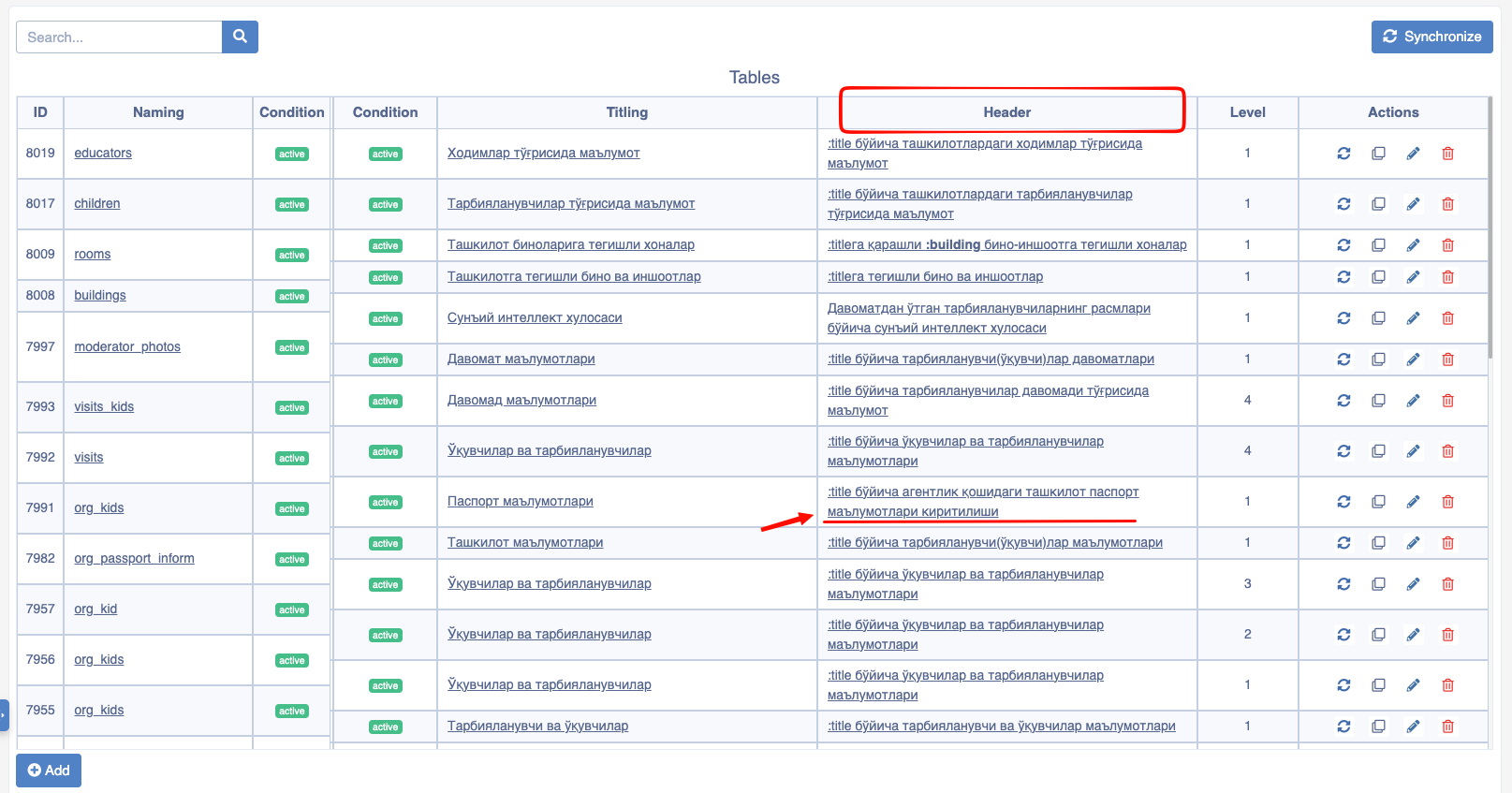
You can navigate to this window through the following sequence:
- Select the desired table from the
Headercolumn in the main Tables window:
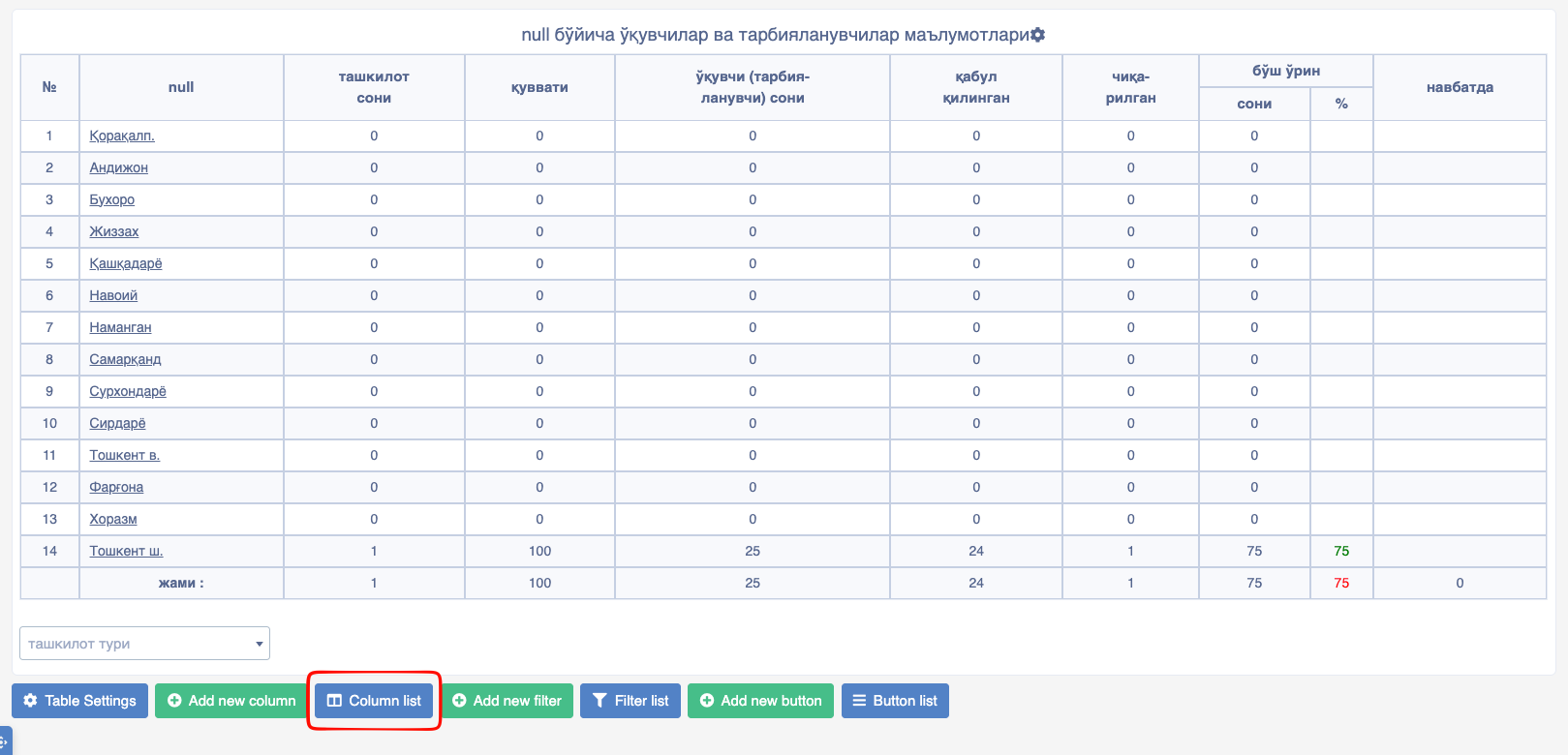
- Select the
Column listbutton from the selected table:
- Table columns editing window:
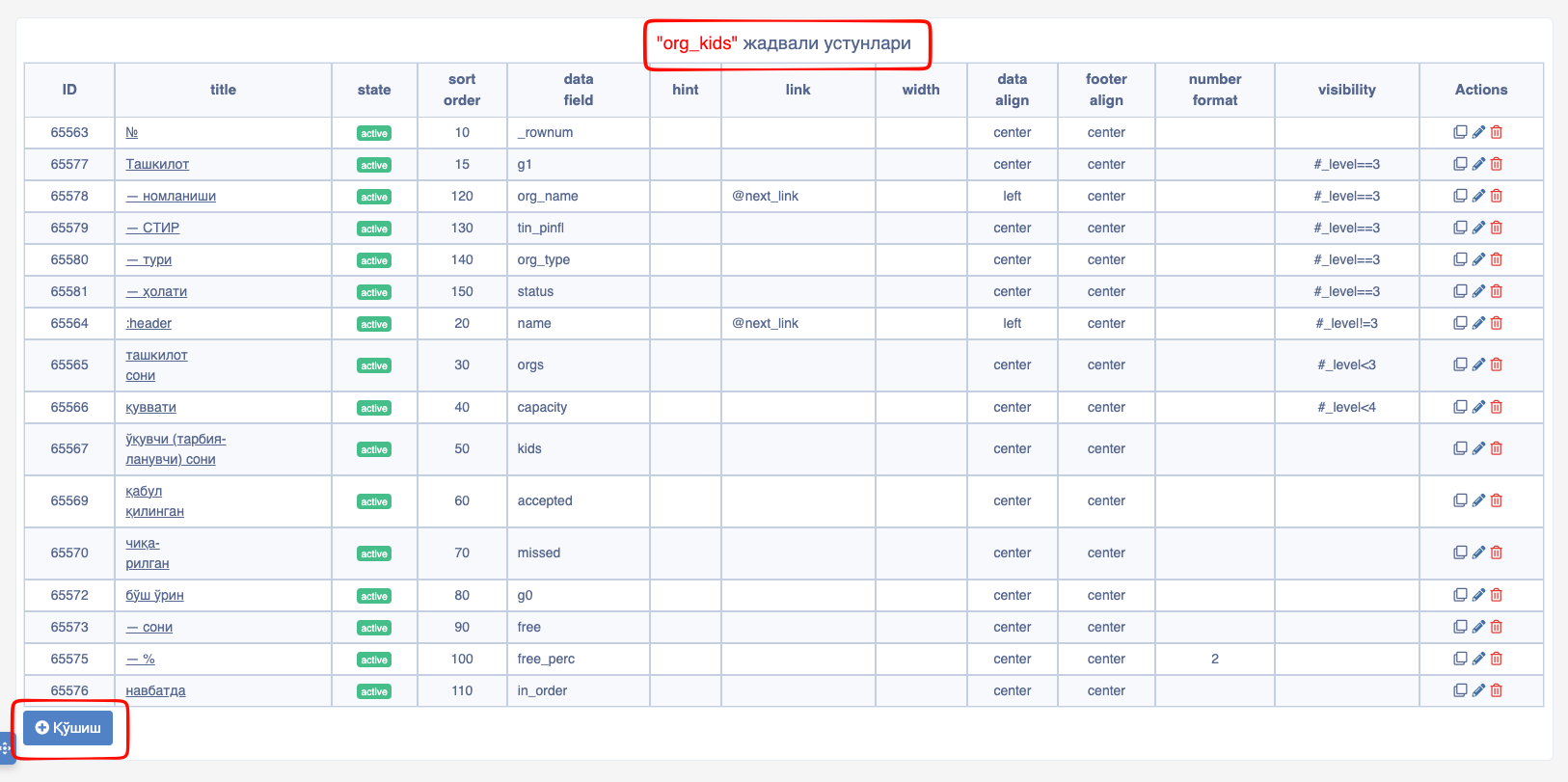
In general, you can get full information about each table column on this page. The main elements you should pay attention to are:
titlecolumn. Opens the column data editing window.Addbutton. Opens the window for adding a new column.
Table View Page
On this page, you can view the table added to the system. Its appearance can be in two forms depending on the data in the table.
Table view without columns added:
Table view with no data: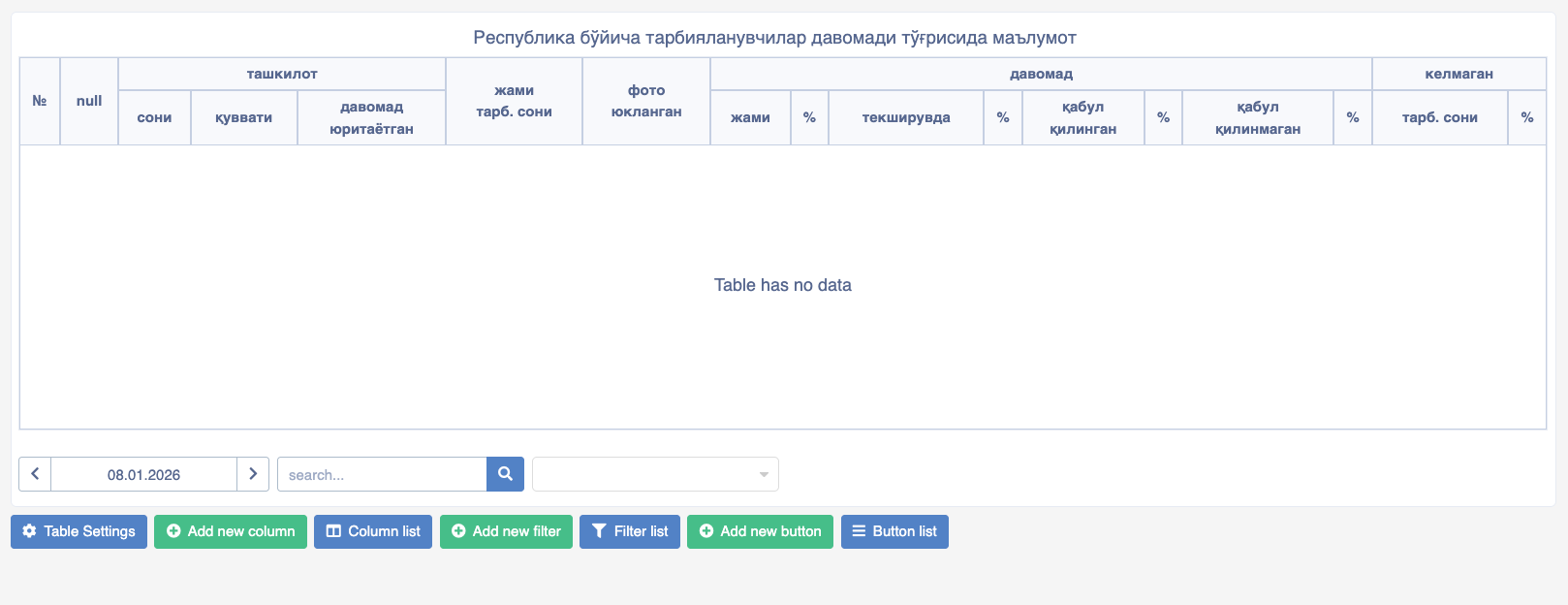
Filled Table view: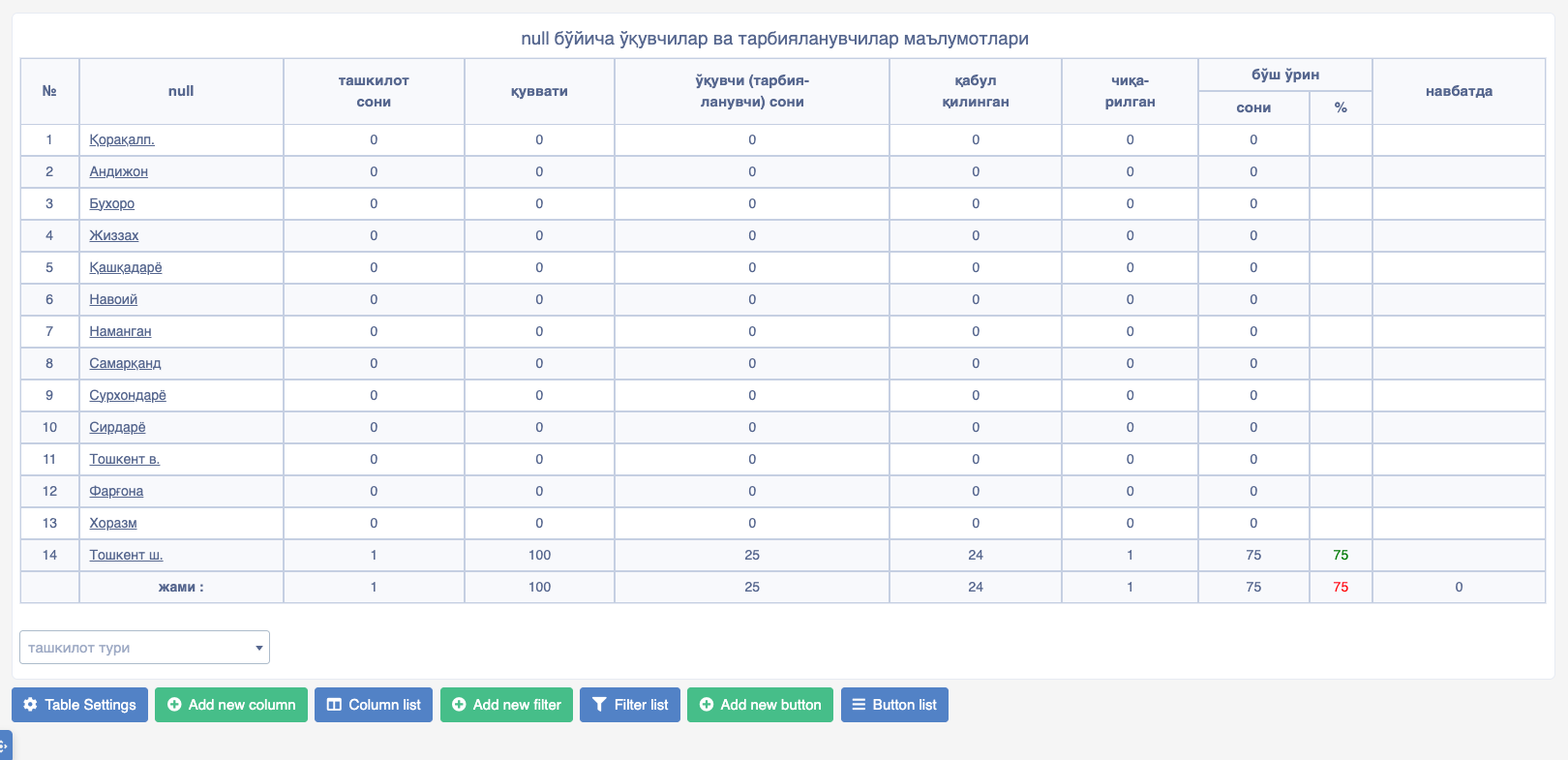
The Table page shows you what the resulting filled virtual table will look like. Below the table, there are control buttons visible only to the administrator.
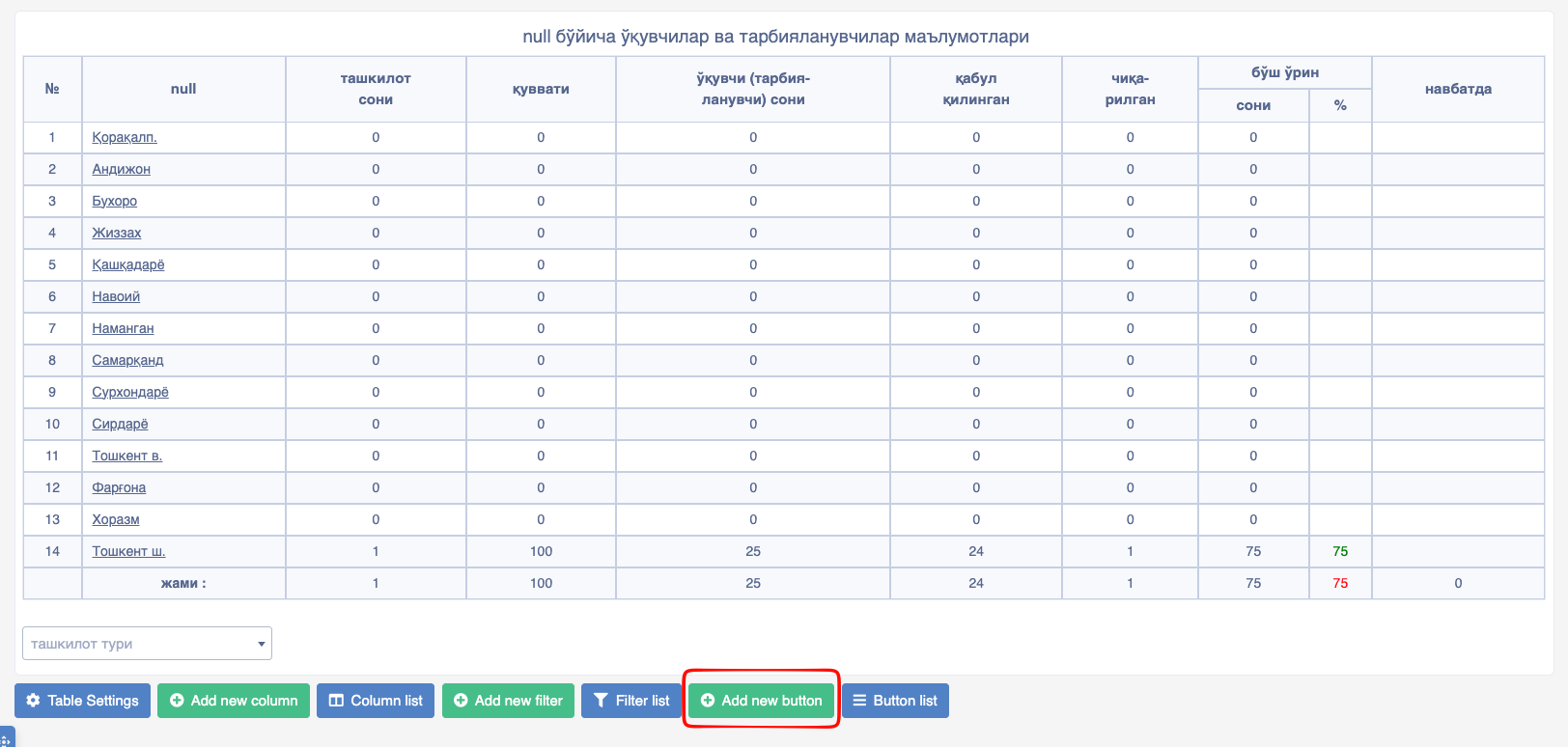
Table Settingsbutton - Clicking this button opens the table settings window.Add new columnbutton - Opens the window for adding a new column.Column listbutton - Opens the page to edit, view, and delete columns added to the table.Add new filterbutton - Serves to add a new filter.Filters listbutton - Possibility to view, edit, and delete the list of created filters.Add new buttonbutton - Add a button to the table.Button listbutton - View the list of buttons.
Table Columns
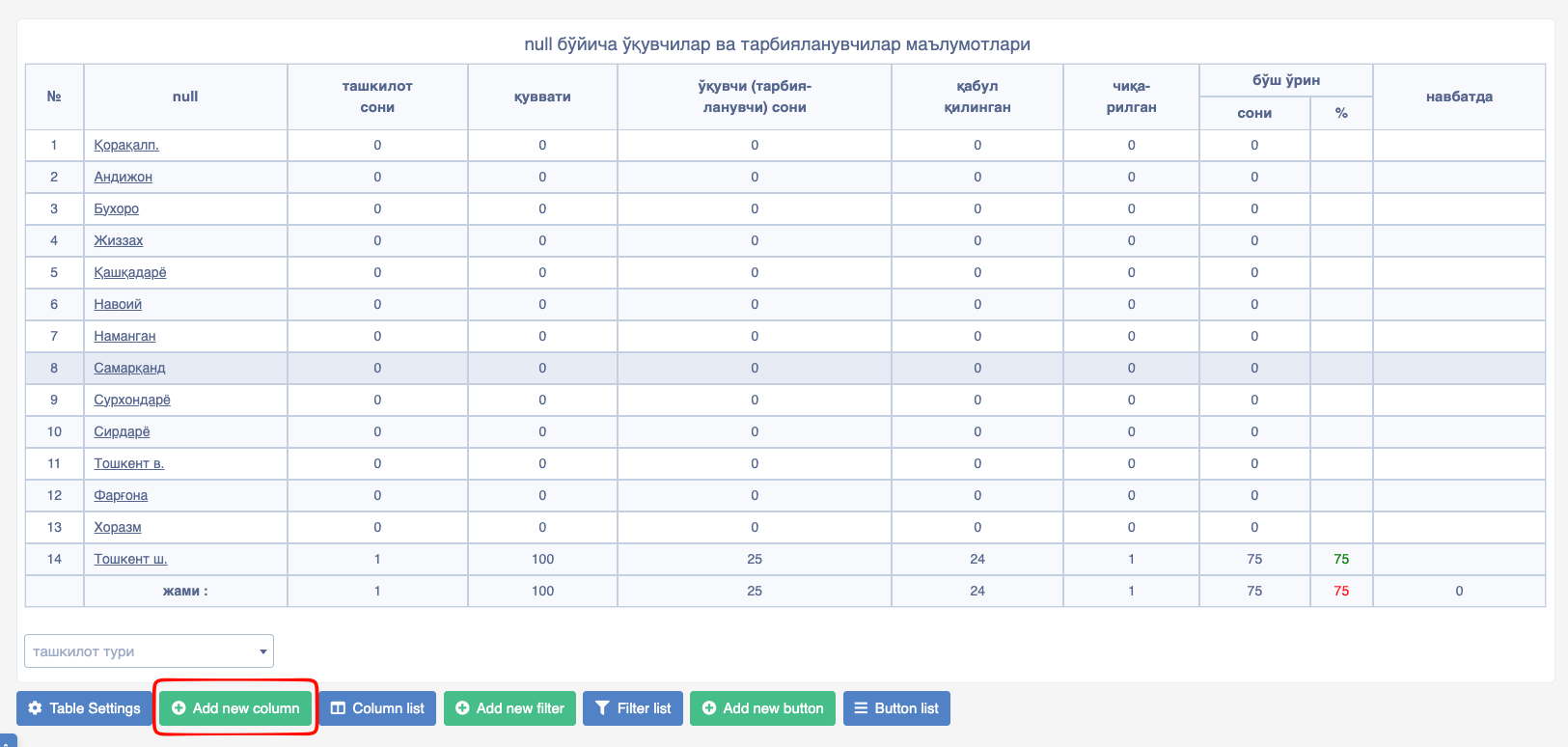
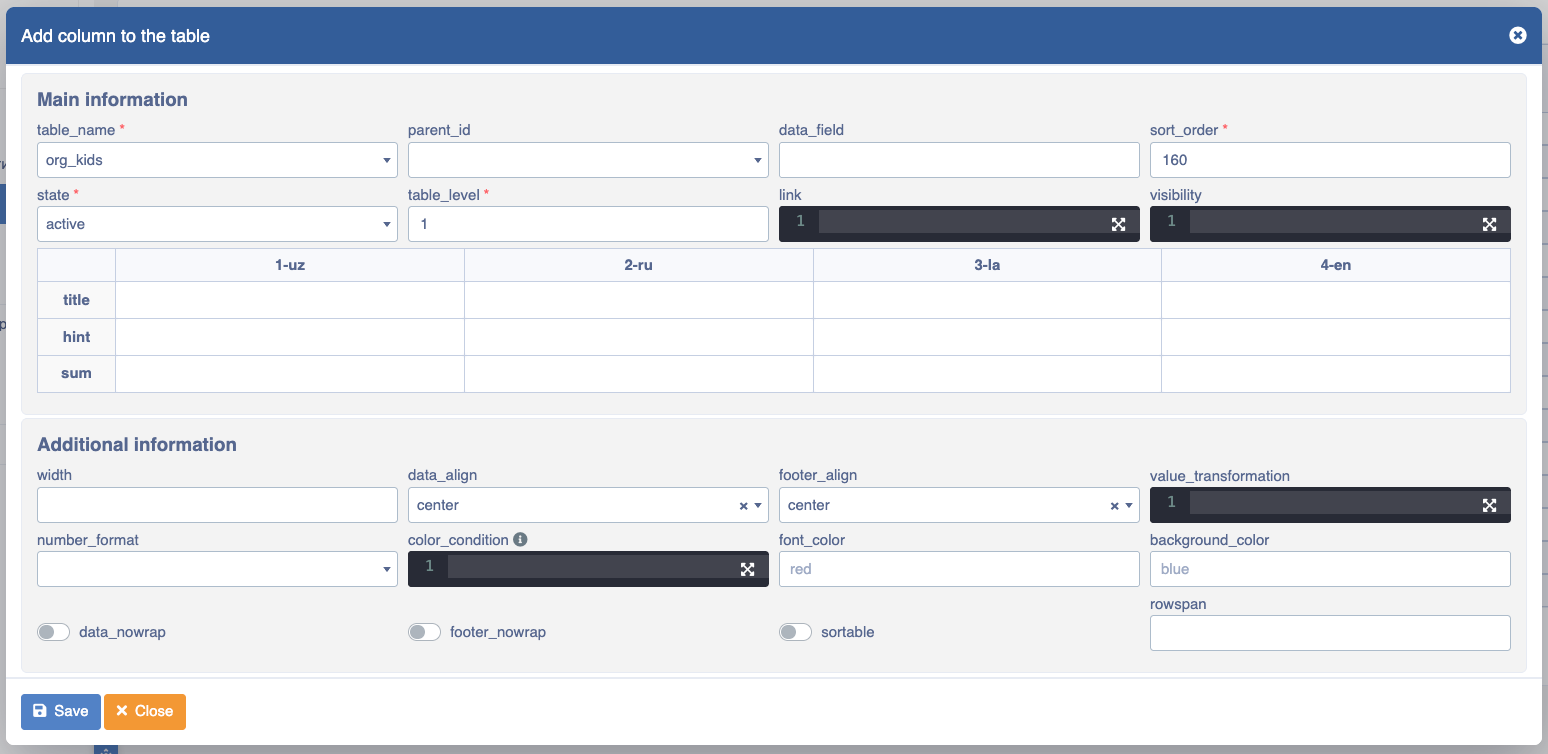
The table addition window contains the following fields:
- table_name. Table name.
- parent_id. Parent column ID.
- data_field. Table column name in the database.
- sort_order. Determines the order among columns.
- state. Visibility status.
Pay attention!
The state field appears in all elements of the Platon builder and can be in three forms:
active– switches the current element to a visible state in the system.hidden– switches the current element to an invisible state within the system.archive– archives the current element.
- table_level. Current table layer.
- link. Link for making column data a hyperlink. Data can be passed to the next form or table through this field.
(for example:/{link}?clickedCell=@value&valueInQuery=#value) - visibility. Determining visibility based on user type.
- title. Name of the table column. Data can be fetched dynamically (
:paramData) - hint. Helper information that appears when the mouse hovers over column data.
- sum. Displaying general information in the very last row of the table. With this function, the sum of values and count of numbers in the column can be calculated (
@_sumand@_count)
Pay attention!
Title and Hint information must be filled in 4 different ways:1-uz – In Uzbek Cyrillic script.2-ru – In Russian.3-la – In Uzbek Latin script.4-en – In English.
- width. Column width.
- data_align. Alignment of data within the column (Left, Center, Right).
- footer_align. Alignment of the very last row's data within the column.
- value_transformation. Element code in JavaScript language. Getting table data (
data.columnValue), getting clicked cell value (value)
In this field, various JavaScript operations can be performed for table columns. Also, VUE.JS Options API method is used in this field.
For example!
return {
    template:<div> </div>,
    data(){
        return{
        }
    },
    methods: {
    },
    mounted(){
        console.log(q('query_data'))
        // here data coming from the link is being captured via q
}- number_format. Number format.
- color_condition. Conditional coloring.
- font_color. Text color.
- background_color. Background color.
- data_nowrap. footer_nowrap. Preventing text from wrapping to the next line if it doesn't fit the column width.
- sortable. Sorting by column.
Table Filters
Table filters provide the convenience of filtering among large amounts of data in the table.
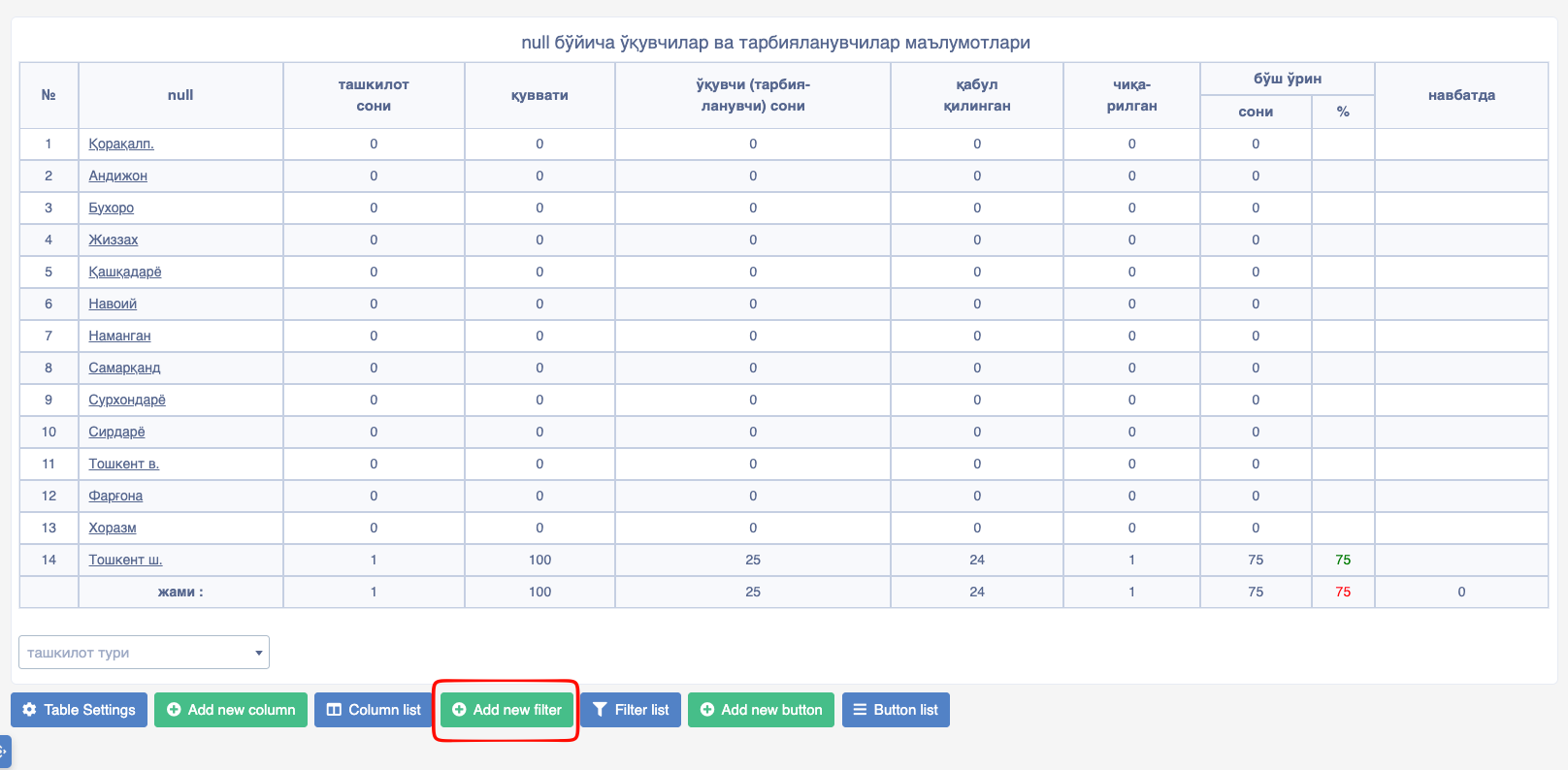

Fields in the window:
- table_name. Name of the table being filtered.
- table_level. Which layer of the table this filter affects.
- sort_order. Sorting relative to other filters.
- key. Name of the affecting column.
- type. Filter type.
- title. Filter name.
Pay attention!
Title information must be filled in 4 different ways:title1-uz – In Uzbek Cyrillic scripttitle2-ru – In Russiantitle3-la – In Uzbek Latin scripttitle4-en – In English
- position. Position relative to the table.
- width. How many columns it occupies in Bootstrap's 12-column system.
- default_value. Default value.
- class. CSS class.
- style. Additional CSS styles.
- visibility. Determining visibility order.
- has_label. Add label into the filter.
Table Buttons
Usually, there are buttons around the table to perform a task related to the table. They are used to add new data to the Table or to modify existing data.
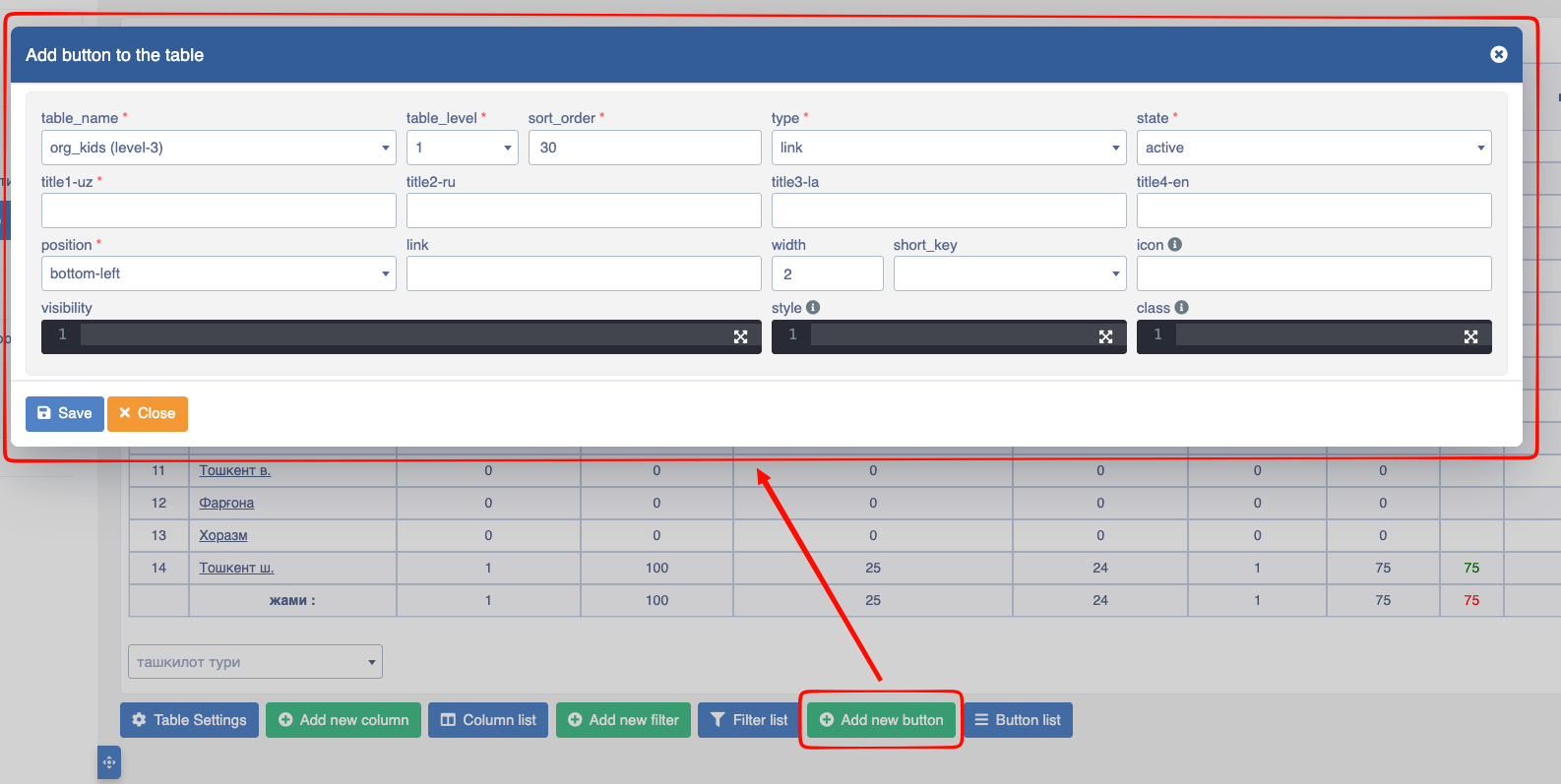
- table_name. Name of the table being filtered.
- table_level. Which layer of the table this filter affects.
- sort_order. Sorting relative to other filters.
- state. Visibility status.
- type. Filter type.
- title. Filter name.
Pay attention!
Title information must be filled in 4 different ways:title1-uz - In Uzbek Cyrillic scripttitle2-ru – In Russiantitle3-la – In Uzbek Latin scripttitle4-en – In English
- position. Position relative to the table.
- width. How many columns it occupies in Bootstrap's 12-column system.
- link. The link the button opens.
- icon. Icon on the button.
Recommendation!
The Platon platform offers you a list of ready-made icons. To view them, press the Ctrl + I key combination.
- class. CSS class.
- style. Additional CSS styles.
- visibility. Determining visibility order.
Multi Table
We can also use multitable, i.e., 2 or more tables via tabs, on a page in Platon.
For example, if we want to display the teachers and students table on one page via tabs:
A new page is opened in Platon, and we can use the following ready-made component.
INFO
In the Html part of the page:
<section class="w-100">
    <multi-table :titles="dataList"
                 :tables="dataTables"
                 main-table="edu-fields"
                 :control-buttons="true"
                 :use_external_buttons="false"
                 :show-header="true"
                 :sperateFilters="true"
                 :useExternalFilters="false">
    </multi-table>
</section>
Here:
dataListTitles of tables in TabsdataTablesList of Tables
INFO
    {
    data(){
        return{
            dataList:['Teachers', 'Students' ],
            dataTables:['teachers' , 'students']
        }
    }
}