Import
This section provides the ability to work with and use document templates.
Import
The Import section is used to import document templates and utilize them in projects. It is useful for generating a number of reports in any projects.
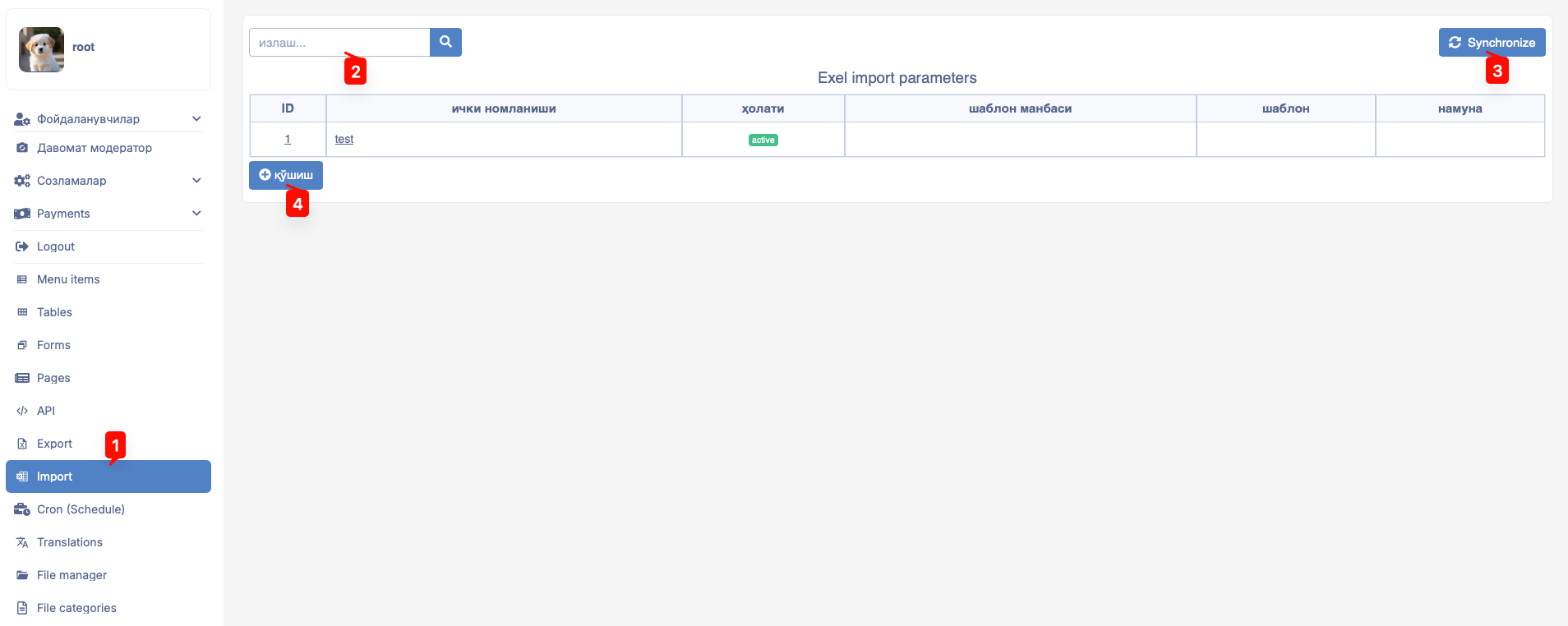
The Import section contains several navigation elements. These are:
- Navigate to the main window through the
Importbutton in the main window. - Search for imported data in the import resources table through the
searchnavigator. Synchronizeexisting data button.Addnew resources button.

You can use the search navigator to search for data within import resources. To do this, type any element related to the data in the search window and press the search button. If it exists in the resources list, the system will display several options for the entered data. The user selects the needed option from these variants to use.
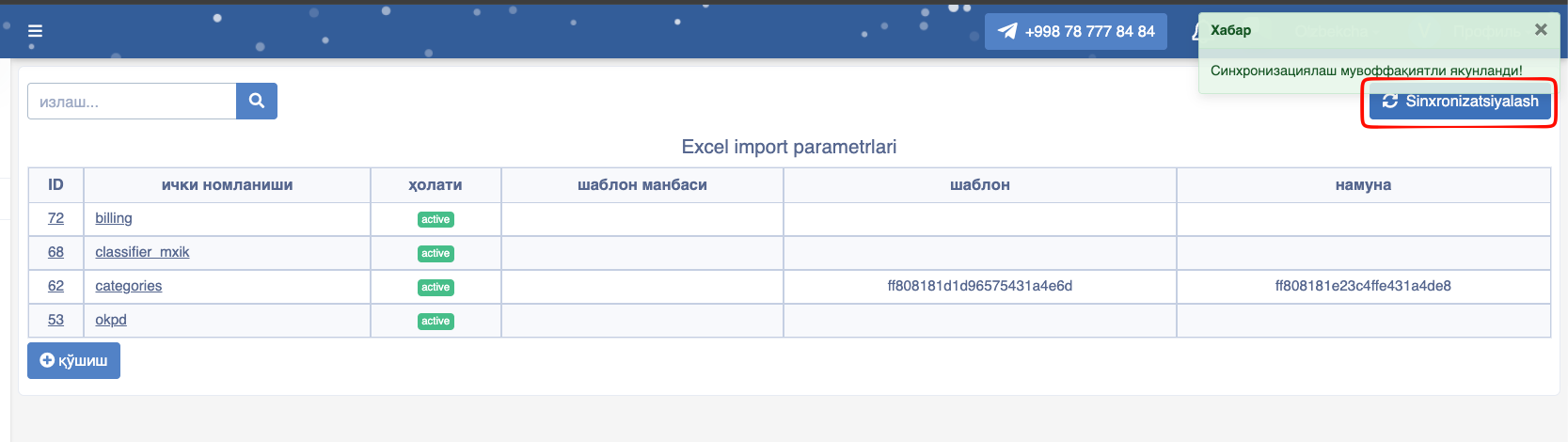
The Synchronize button is pressed to optimize data in the resources list. This button serves to check resources connected to methods and optimize the data.


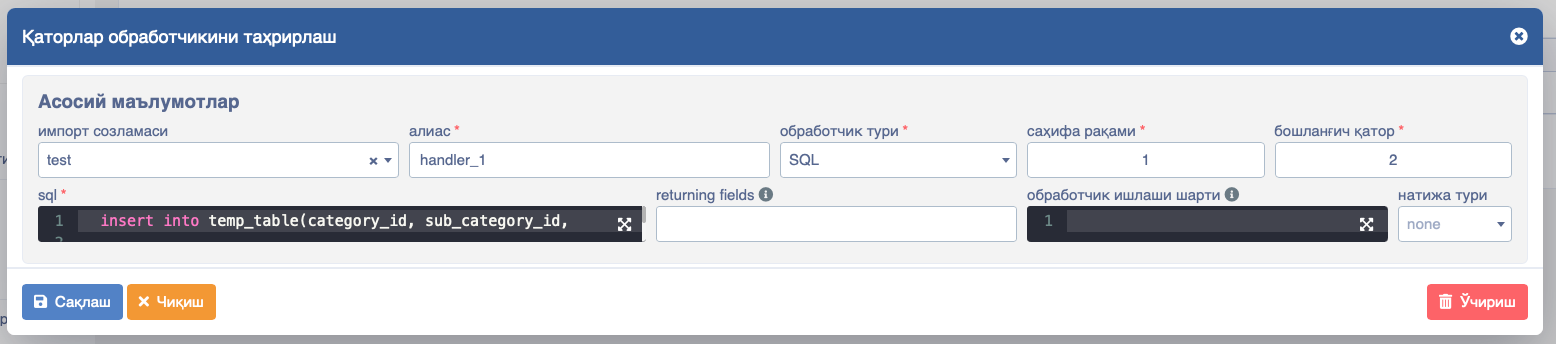
At any time, we can view how the data in the import resources table is structured and what parameters it contains. To do this, you need to follow the sequences shown in the images above.

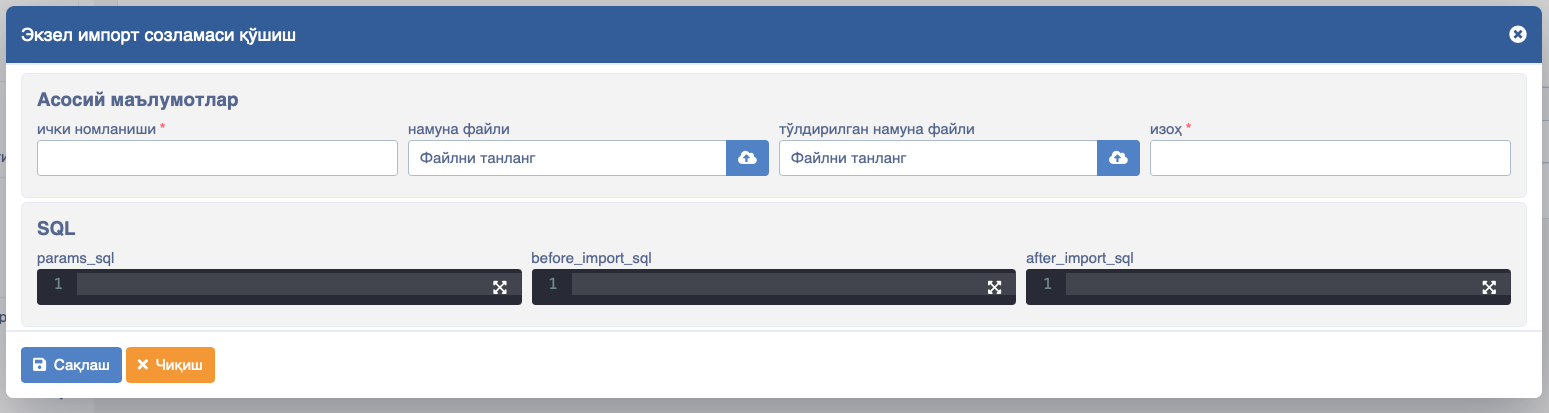
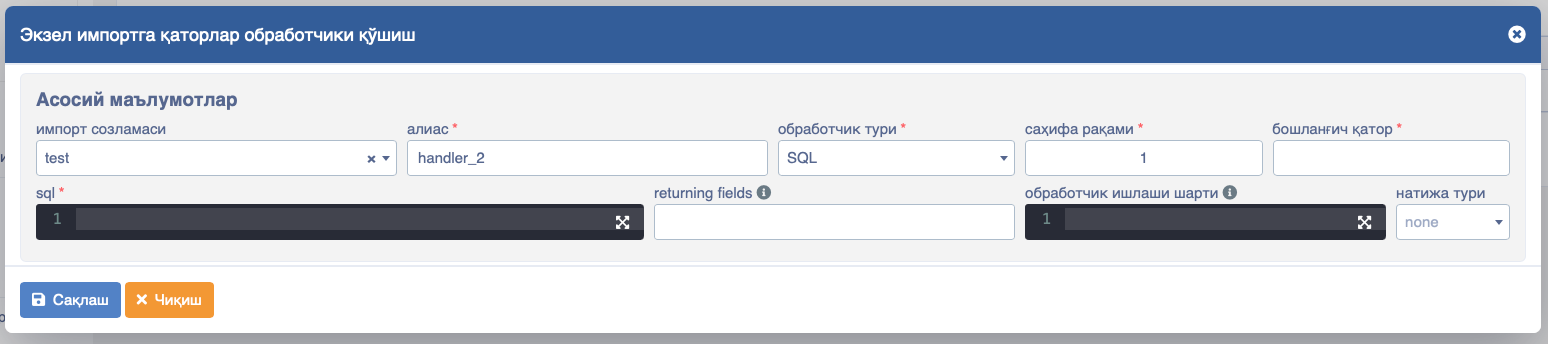
TODO
Please add information for each input and selects. In the old doc has the information about export on the import page?
Practical Experience
Let's try importing a users table in practical experience.
- First, create a new import from the import section.
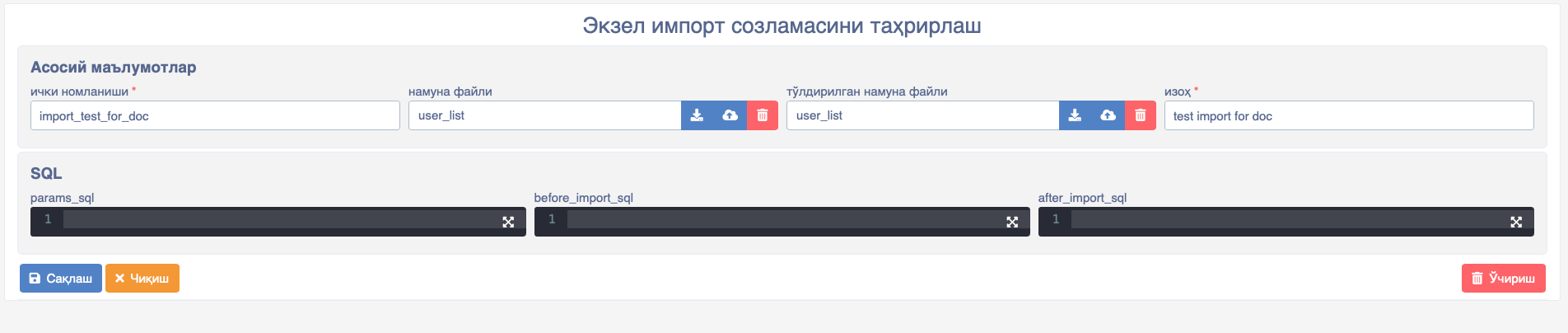
- Create a new handler.
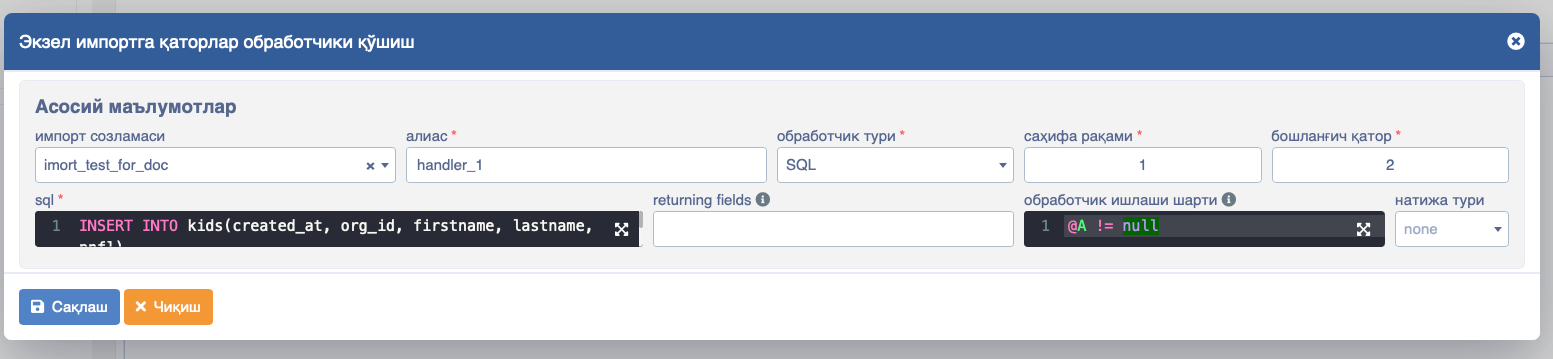
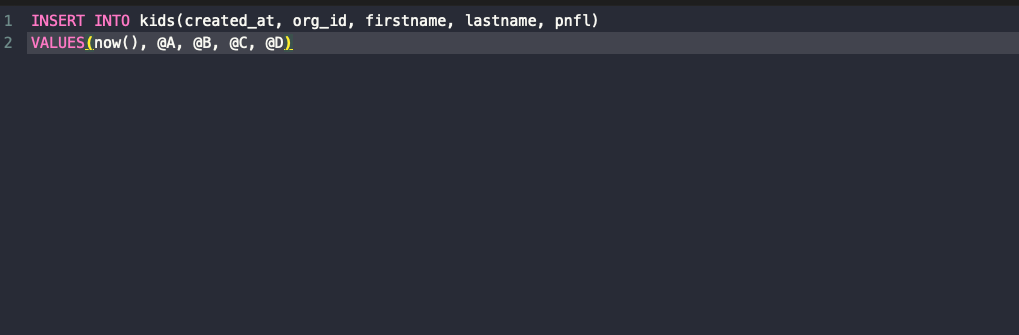
- Write the SQL part: here
@A,@B,@C, ... are the names of cells in the Excel file.
- Create a new table and import button.

- Give the button an import name.
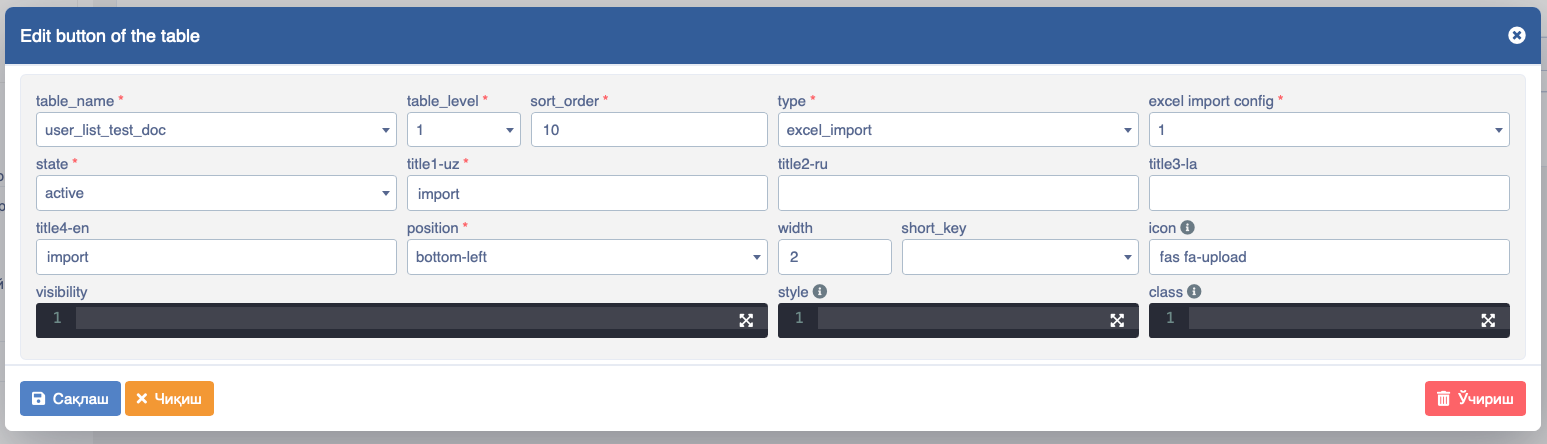
- Press the button and upload the file, and the result is ready.
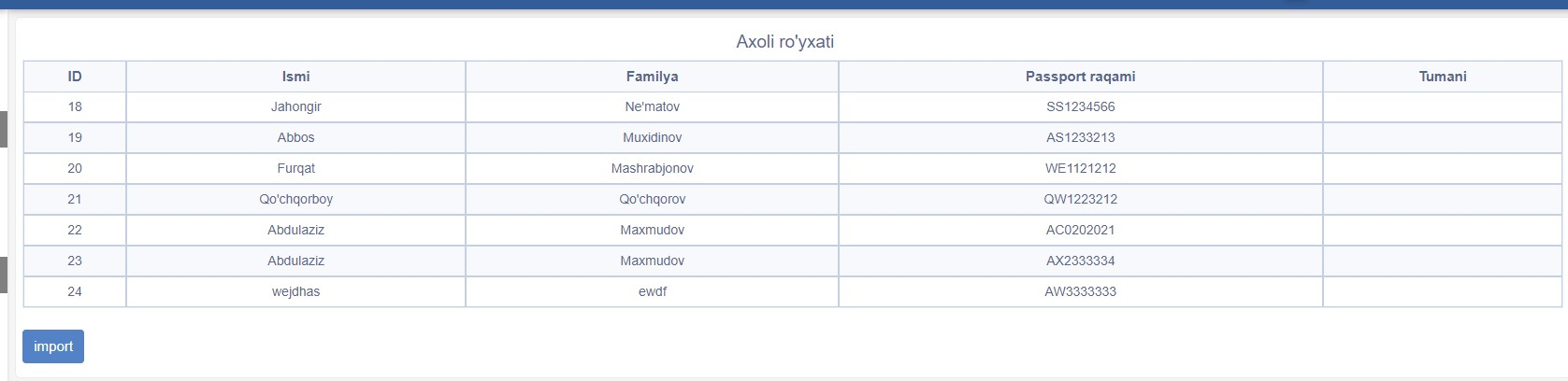
All necessary data is selected and filled in, then the Save button is pressed. In this way, the data entered for export is structured in a table and any developer who has permission to use it will have the right to use it.