Menus
On this page, you can familiarize yourself with the menus section, which handles the general platform navigation.
General Information
Any software consists of several functional sections. Usually, the main menu is used to access these sections and display a list of all general resources. The Platon platform offers a very convenient and advanced menu builder for developers. This section provides information on adding menus to the web application, editing them, and managing their appearance.
Section Structure
To go to the Menus section, you need to select the Menu items in the side menu. When you enter the Menus page, the following page opens.
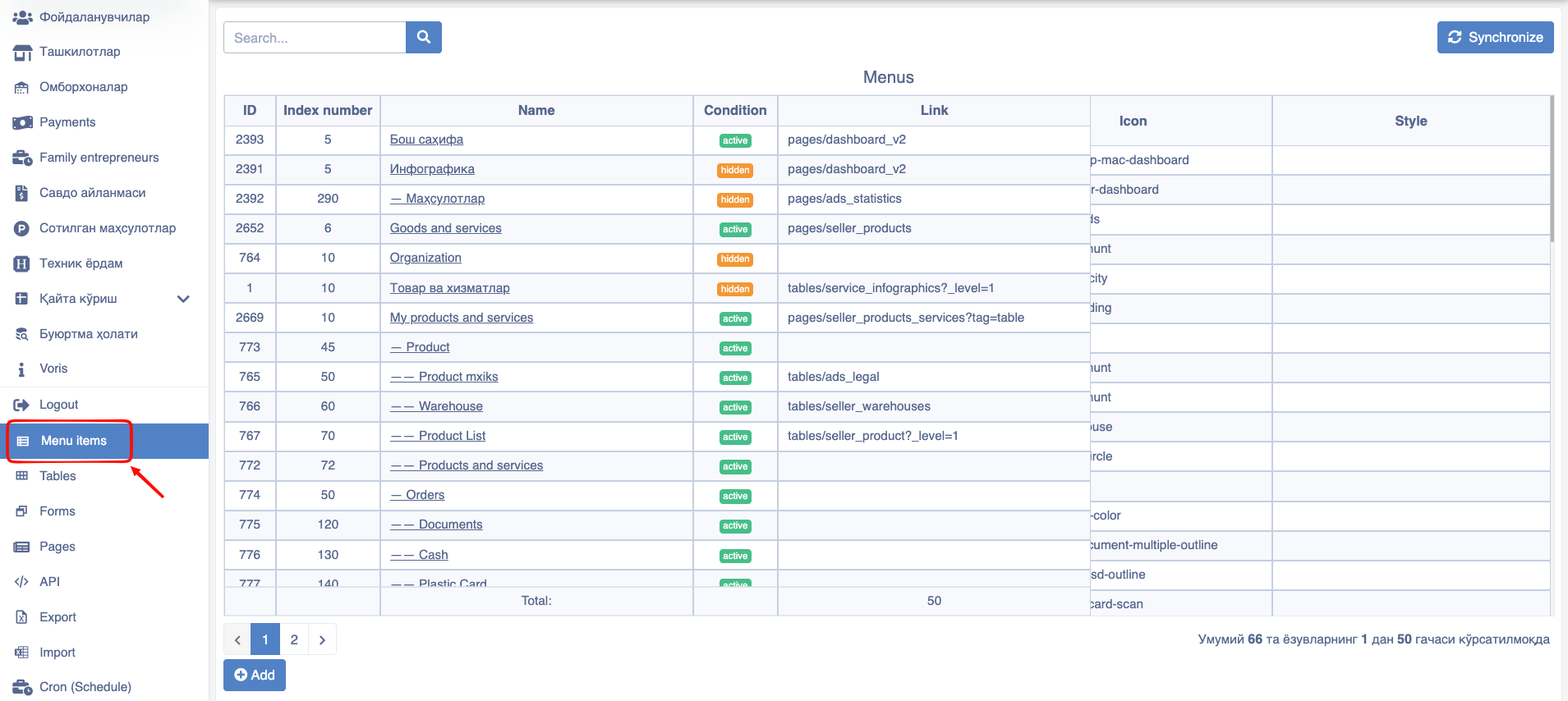
Parts to pay attention to on this page:
- Search field - Search among added menus.
Synchronizebutton - Synchronizes the list of menus with the user workspace.- Name column - Opens the editing window for the selected menu.
Addbutton - Opens the window for adding a new menu.
Add New Menu Window
When the button is clicked, the following window opens:
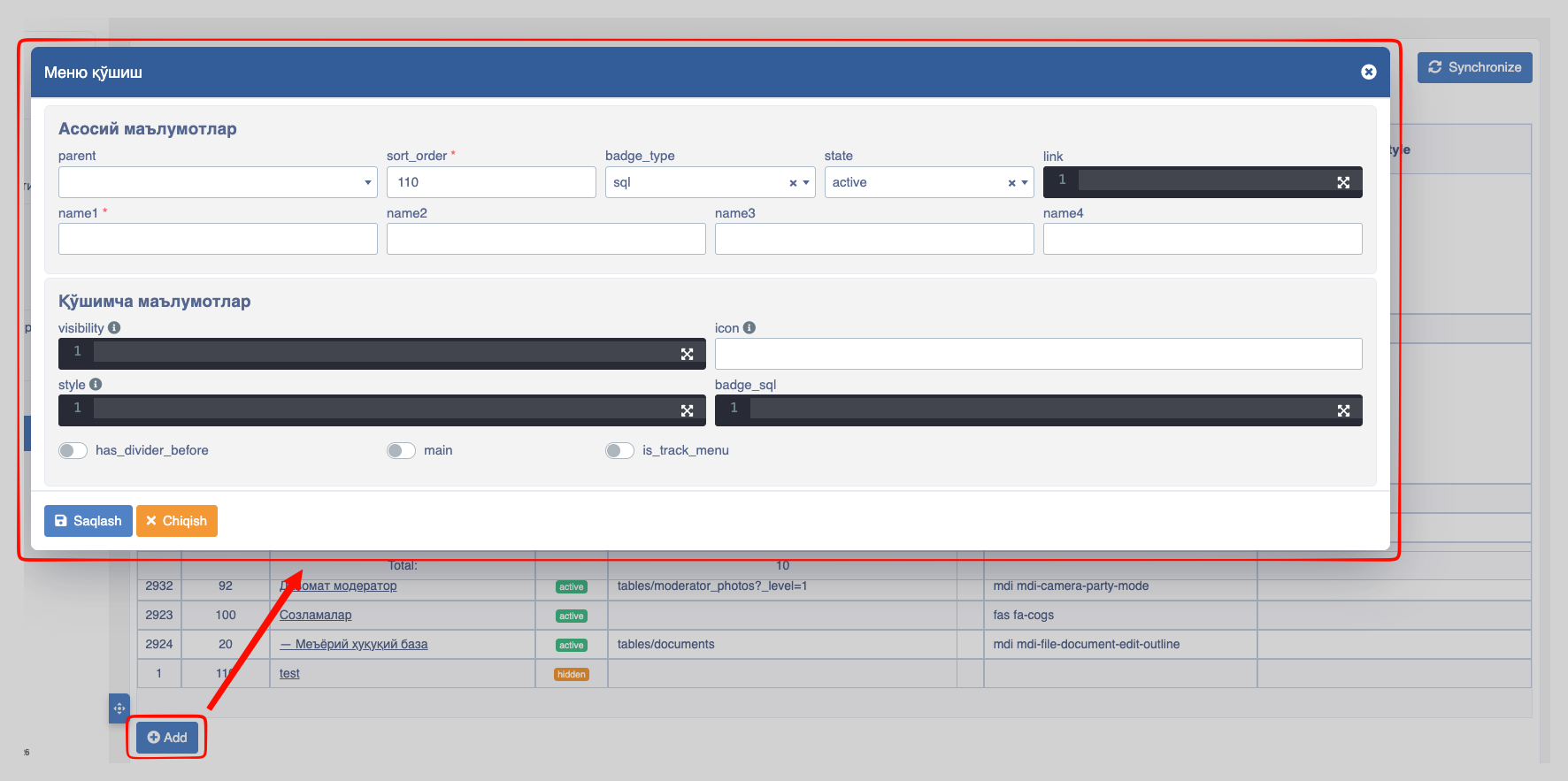
General Information Section
parent - to indicate the parent menu section.
sort_order - sorting order.
badge_type - used to fetch information about the menu. This can be used in two ways:
- Fetching data via SQL
- Fetching data via Platon API
state - visibility status.
Pay attention!
The state field appears in all elements of the Platon builder and can be in three forms:
- active – switches the current element to a visible state in the system.
- hidden – switches the current element to an invisible state within the system.
- archive – archives the current element.
- link - the link this menu leads to. In this field, we define which page, table, or form opens for users when the menu is opened. For example:
To open a page: pages/{page_name},
To open a form: forms/{form_name},
To open a table: tables/{table_name}
Additional Information!
In this field, we can also provide conditions for opening different pages based on user permissions or id. For example: If we need to open the users page for users with admin permission, and another page for non-admin users, i.e.: bjs: ($user.has_perm('admin')) ? 'pages/users': 'pages/user2' In this case, clicking this menu opens the users page for users with admin permission, otherwise, the user2 page opens.
Additional Information!
Additionally, through the fjs function, we can use other Javascript conditions. i.e. fjs: (() => { conditions and return })();
- name fields. - Menu text.
Pay attention!
name1, name2, name3, and name4 data must be filled in 4 different ways: name1 – In Uzbek Cyrillic scriptname2 – In Russianname3 – In Uzbek Latin scriptname4 – In English
Additional Information Section
- visibility Determining visibility based on user type. In this field, we can clarify who this menu is visible to; meaning this menu will not appear at all for unauthorized users.
Additional Information!
In this field, like the link field, we get user info via $user. Example: $user.has_perm('admin') - Meaning this menu is visible only to admin users.
Important note!
These restrictions do not apply to Platon admins.
- icon - Menu icon image.
Additional Information!
Platon platform has pre-inserted icon images, which you can view by pressing the Ctrl + I key combination.
- has_divider_before - Place a divider before the menu section.
- main - Ensure the menu section opens upon entering the website.
- is_track_menu - A visual effect indicating that a specific menu is selected in the menus section.
Features
The menus section offers several additional features. These features are discussed below.
Adding Nested Menus
Warning!
Links are not used in the Adding Nested Menus guide provided as an example. Therefore, the link field in each menu section is left empty.
In this example, the main focus is on using the parent field.
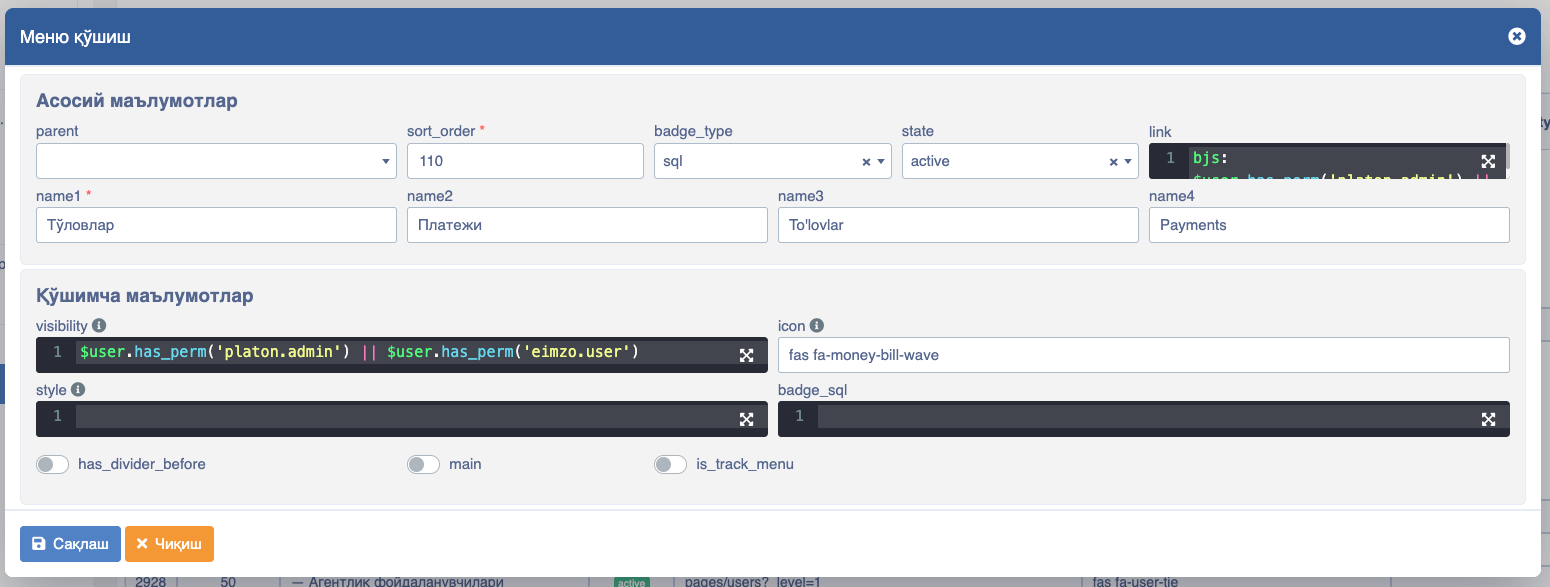
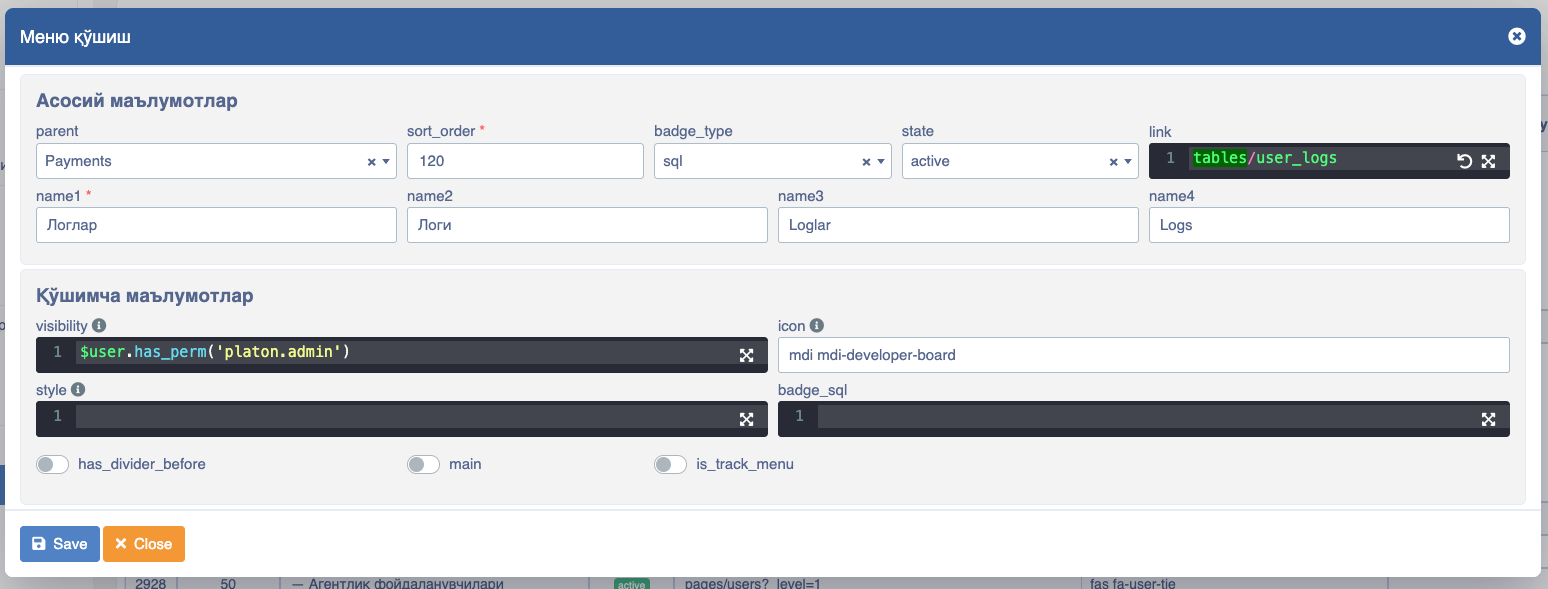
In the menus panel, a developer can combine several menus under a specific menu. To do this, it is sufficient to specify another menu as a parent inside a menu. This situation is shown below.
Examples of Adding Menus
Payment menu
Logs menu.
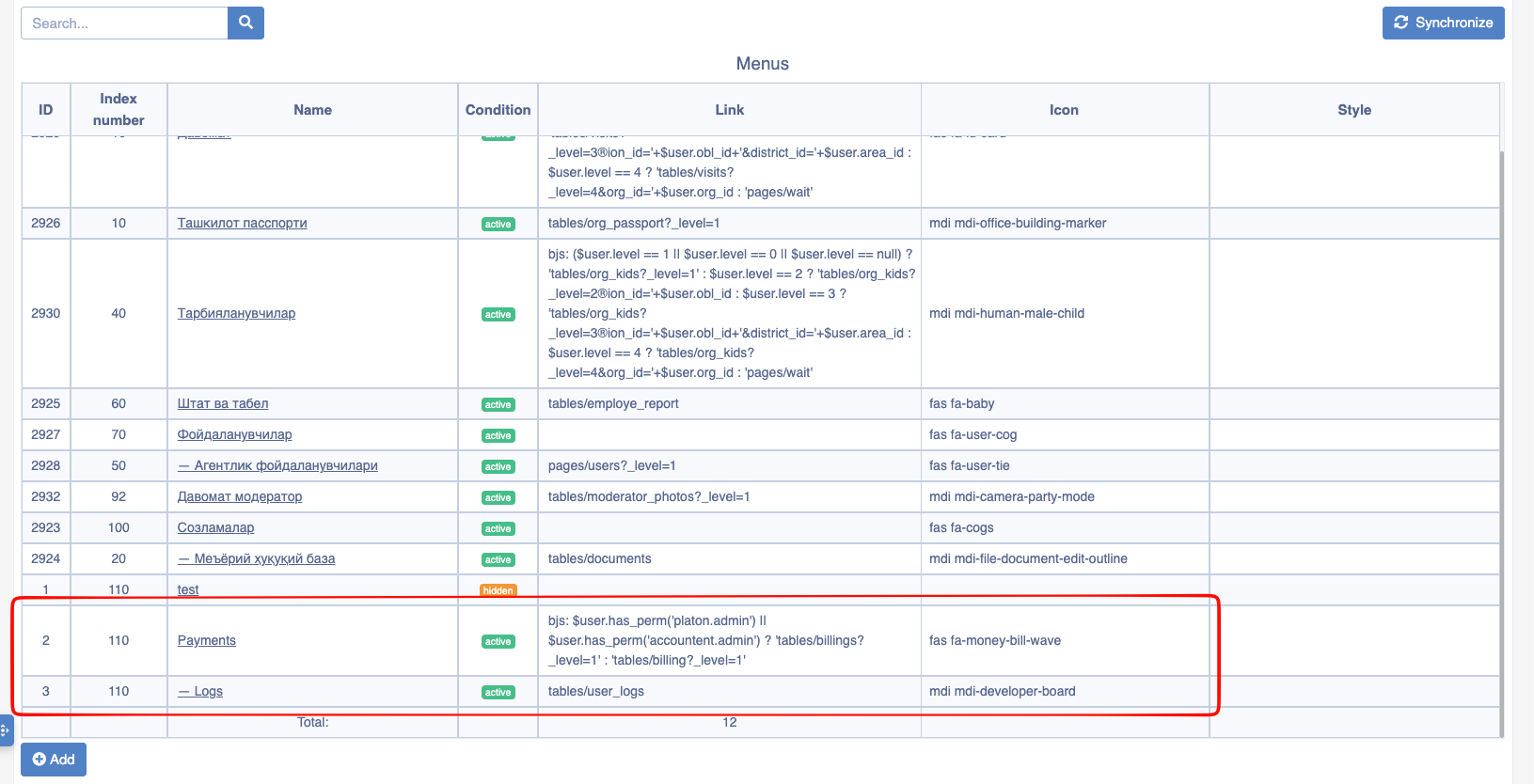
Result
As a result, the menus page should look like this:
Menu Links
For a menu section to send to a page, the link field must be filled when adding it. Links can be of several types:
Internal link. Sending to a page, table, or form inside the Platon platform. For example:
forms/reportstables/productspages/indexExternal link. Sending to a website link outside of Platon. Here, the HTTP protocol must be specified. For example: https://google.com
Adding a Badge to a Menu
The menu has the convenience of placing a badge as shown in the image below. It is advisable to fill the badge field in the Add Menu window.
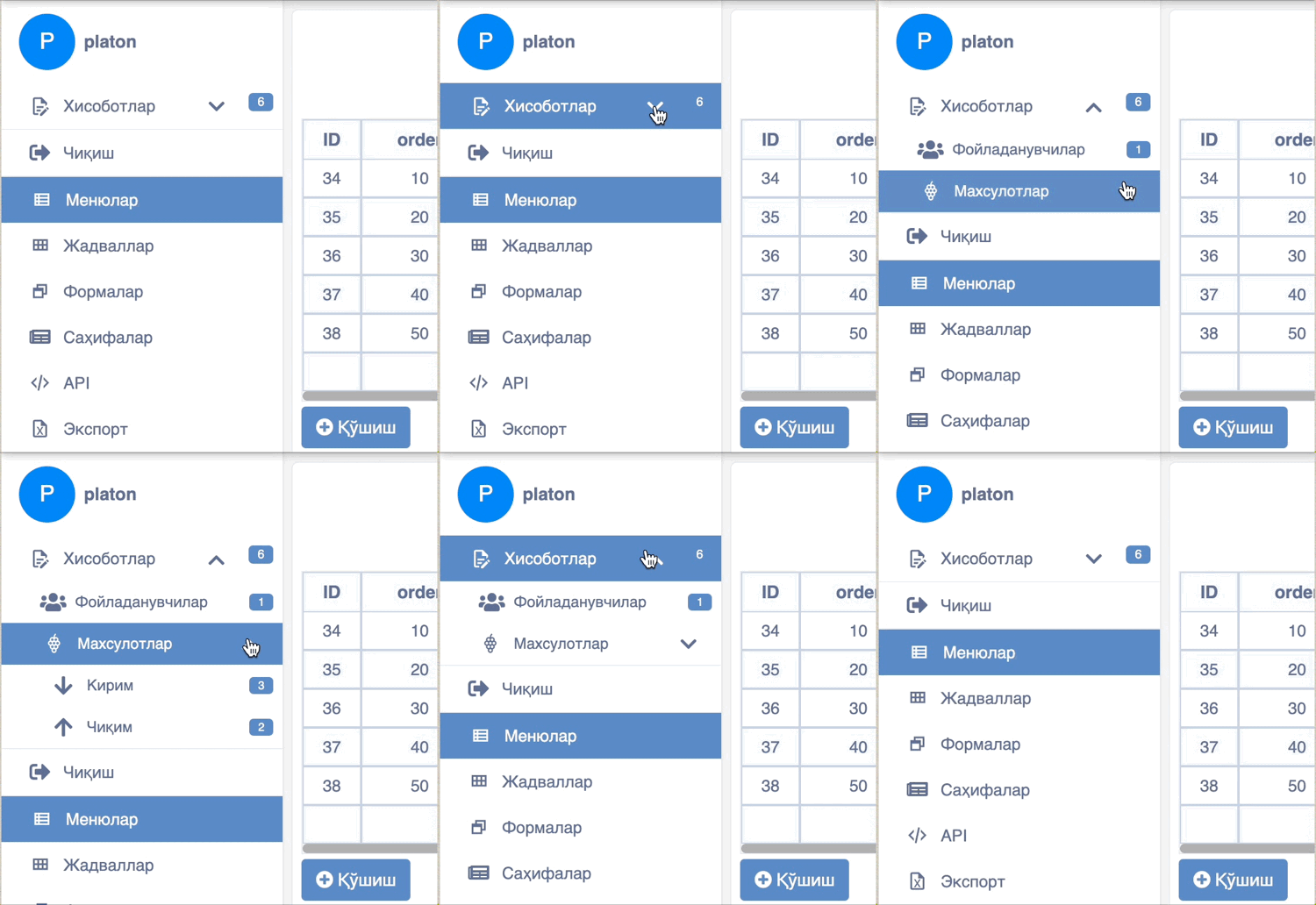
The main requirement is to show the badge field via an SQL query. That is, in this field, you can fetch data from the Database as an SQL query.
For example: SELECT COUNT(id) FROM users. This query retrieves the number of users.
In addition, you can also show simple text as a badge. To do this, in the badge field, for example: you can write SELECT 'new'. Then the text new will appear next to the menu section you selected.