Export
This section allows for working with and utilizing document templates
Export
The Export section is used to input document templates and use them within projects. It is useful for generating a variety of reports in any given project.
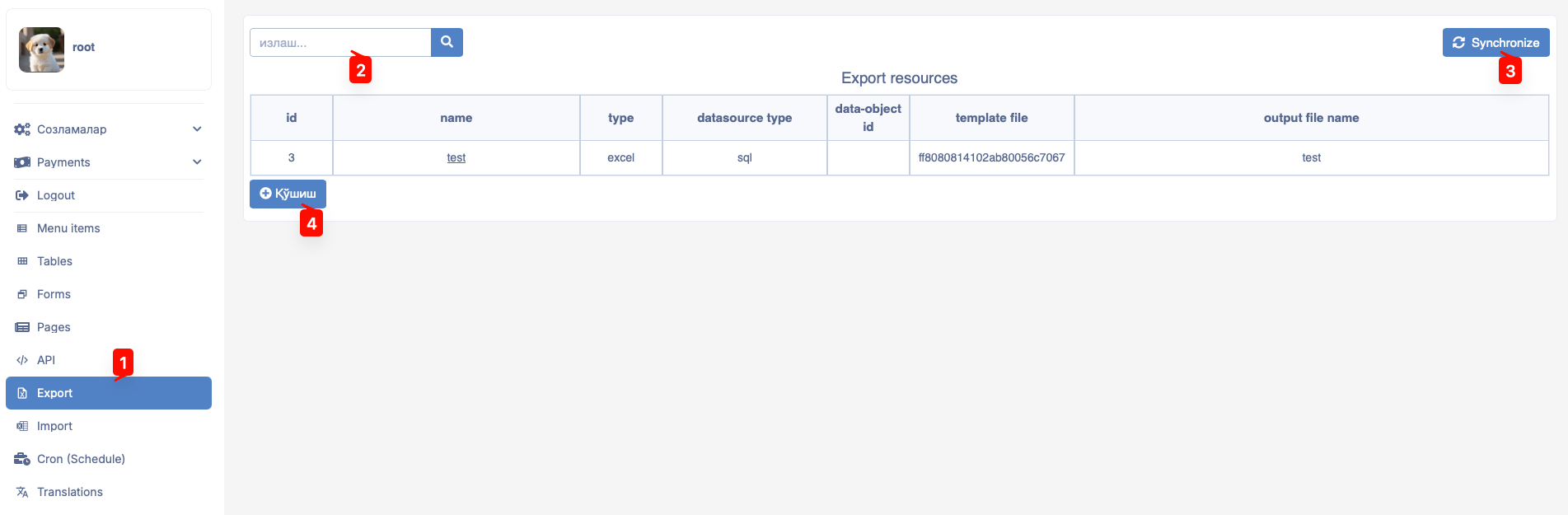
The Export section contains several navigation elements. These include:
- Navigate to the main window via the
Exportbutton on the main screen. - Search for entered data in the export resources table via the
searchnavigator. - Button to
Synchronizeexisting data. - Button to
Addnew resources.

The search navigator can be used to search for information within export resources. To do this, type any element related to the data in the search box and click the search button. If it exists in the resource list, the system will display several options for the entered data. The user selects the necessary option from these to use it.
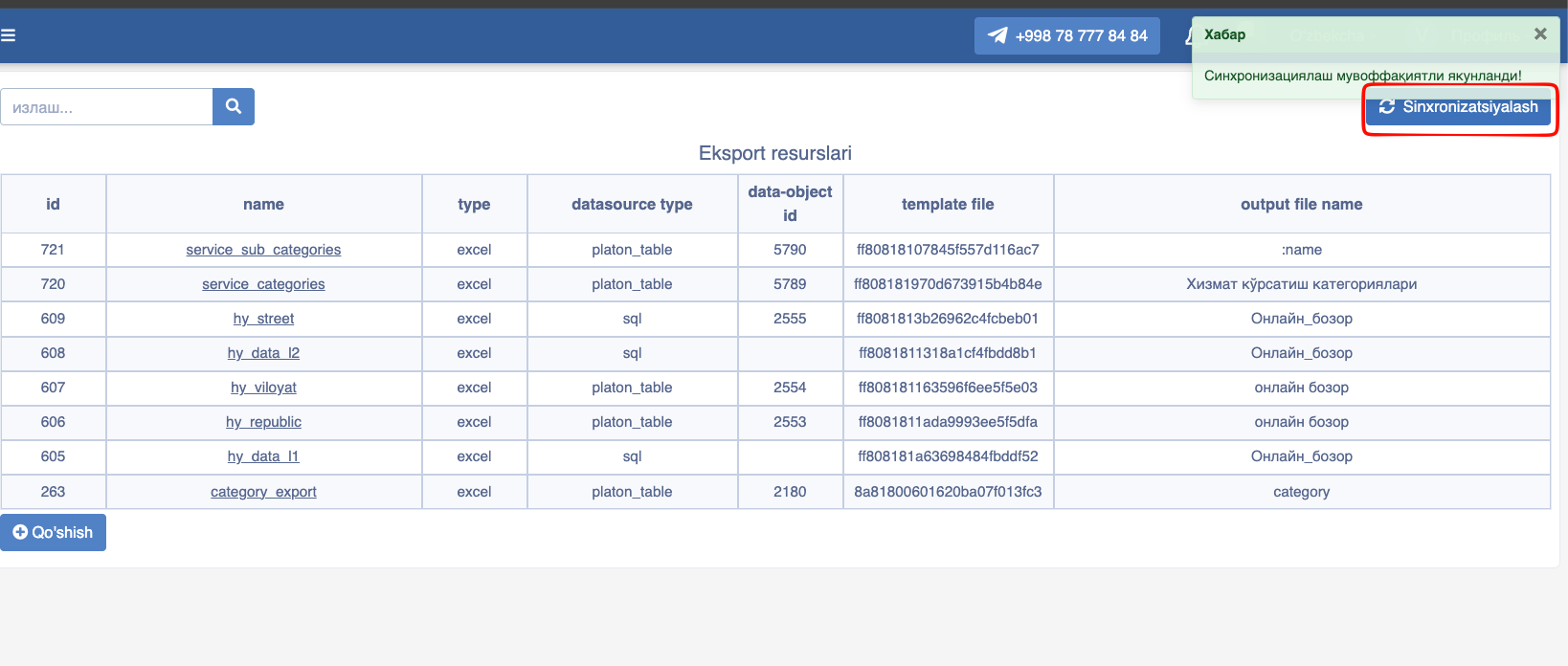
To optimize the data in the resource list, the Synchronize button is clicked. This button serves to optimize data by checking resources connected to methods.

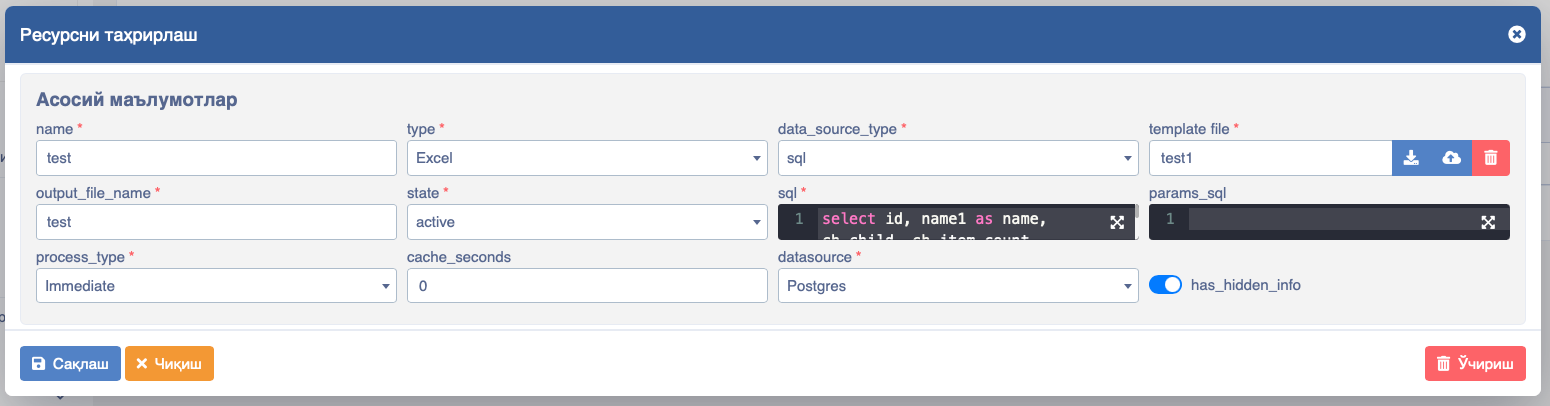
At any time, we can view how the data in the export resources table is formed and what parameters it includes. To do this, simply click on the data in the table.

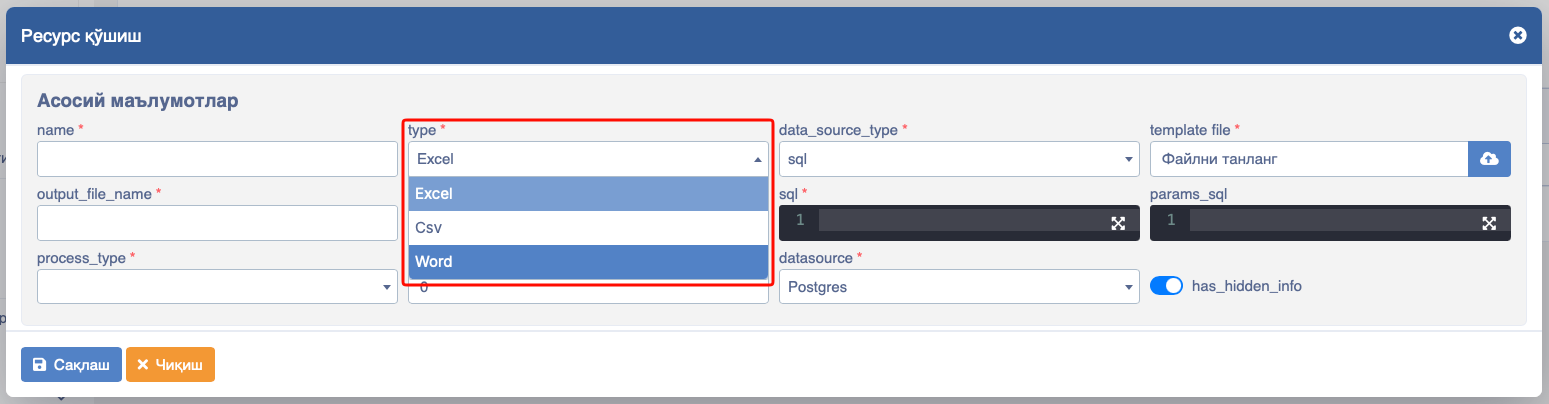
To add a new resource to export data, click the Add button. A series of data is entered in the opened modal window. The fields to be filled are configured depending on the type element of the resource being entered. When the Word element is selected for the type field in the modal window, the following fields are generated:
- name - intended for a short name that correctly expresses the content of the resource.
- type - represents the format of the file intended for export and serves to display parameters corresponding to it.
- data_source_type - includes parameters such as
sql,platon_table, andplaton_api, representing the form in which the resource data is retrieved. - template file - serves to express and form the theme/template of the resource.
- output_file_name - represents how the output file should be named.
- state - represents the status of this resource. Includes statuses like
active,hidden, andarchived. - sql - intended to express the process via queries in the database.
You can see its usage in the following example:
TODO
Is this true example?
http.get("https://e-auksion.uz/api/front/lots")

{
    "totalPages": 193,
    "totalRows": 1927,
    "currentPage": 1,
    "gaming_lots_cnt": 0,
    "rows": [
        {
            "id": 2070118,
            "lot_number": "2070118",
            "name": "Қурилиши тугалланмаган мактаб биноси",
            "full_address": "Ташкентская область, Янгиюльский район, Шўралисой КФЙ, Хўжаобод МФЙ",
            "confiscant_categories_name": "Здания с незавершенным строительством",
            "category_id": 4,
            "start_price": 1.80503E9,
            "zaklad_sum`ma": 9.02515E7,
            "auction_date_str": "20.06.2022 10:00",
            "order_end_time_str": "20.06.2022 09:00",
            "zaklad_percent": 5.0,`
        }]
}- params_sql - intended to express query parameters in the database. You can see its usage in the following example:
select coalesce(concat(t.name1, 'нинг'), '')             as org_name,
       coalesce(concat(t.name1, 'нинг'), '')             as org_name1,
       coalesce(t.name2, '')                             as org_name2,
       coalesce(concat(t.name3, 'ning'), '')             as org_name3,
       coalesce(t.name4, '')                             as org_name4,
       coalesce(#search, '')                             as search,
       coalesce(#org_id::bigint, $user.extraData.org_id) as org_id
from sm_orgs t
where t.state = 1
and t.id = $user.extraData.org_id- cache_seconds - this field serves the caching mechanism and represents the interval for updates. The data entered here must be expressed in whole (
int) numbers. - datasource - intended to express from which resource the applied export data comes. It includes
PostgresandClickhouseresources.
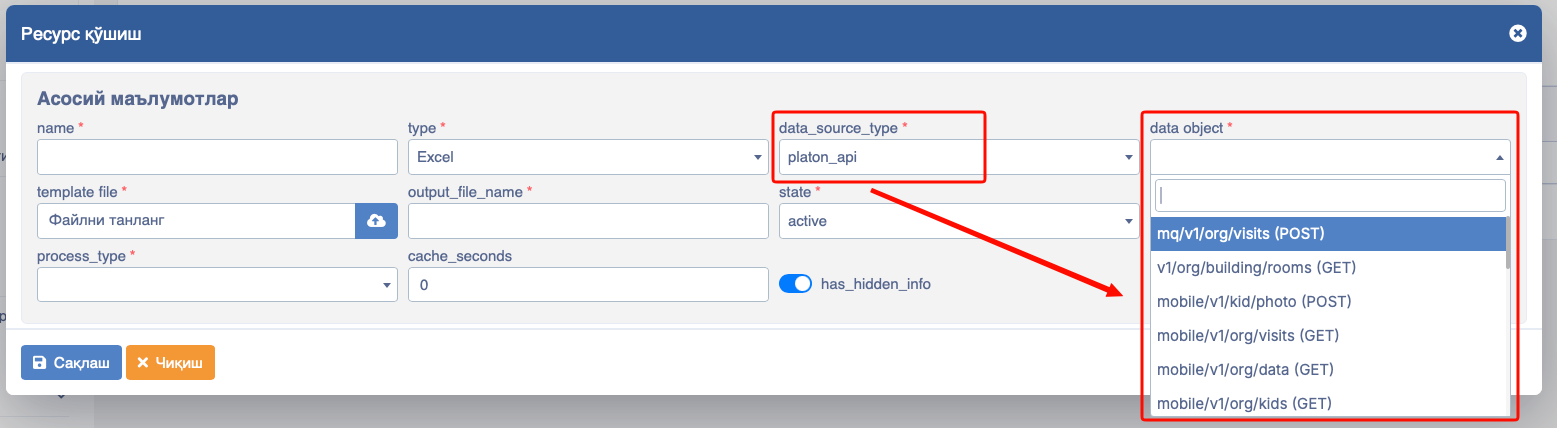
Depending on the selected data_source_type, appropriate fields are displayed in the modal window. It includes three types of data.
These are:
- sql - serves to involve SQL queries and use them.
- platon_table - serves to form data based on the names of tables available in Platon.
- platon_api - serves to use APIs available in the Platon database open for exploitation.
- When the
platon_apitype is selected in data_source_type, an additional data object field opens in the modal window. In this opened field, the required API is selected and entered for use in the export functionality.
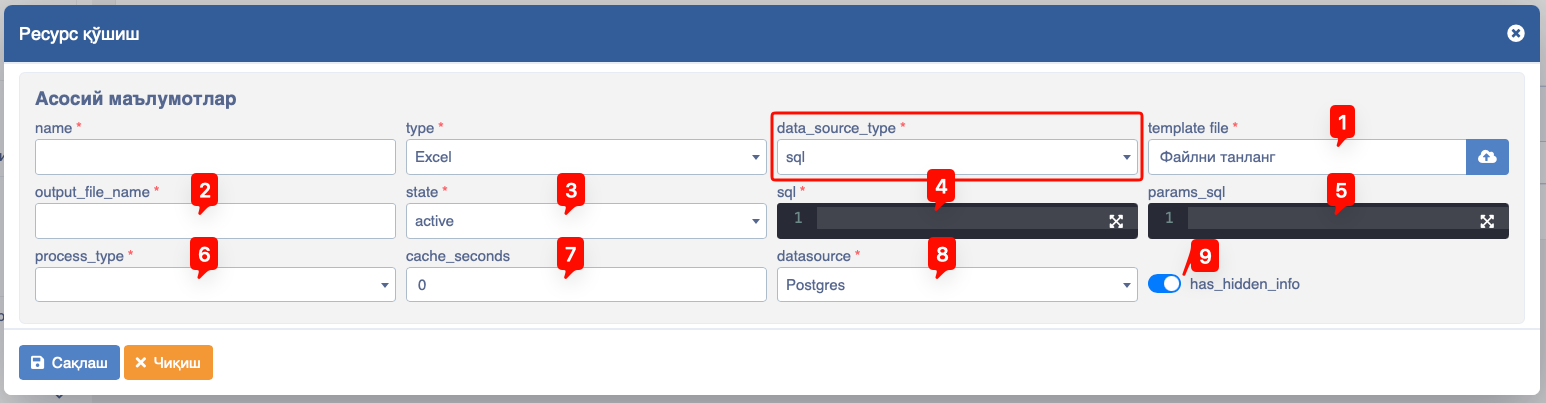
When the sql type is selected in data_source_type, several fields are formed in the modal window.
These are:
- template file - intended to involve documents available on the local disk.
- output_file_name - represents how the output file should be named.
- state - serves to express the state of the export resource.
- sql - intended to express the process via queries in the database.
You can see its usage in the following example:
http.get("https://e-auksion.uz/api/front/lots")

{
    "totalPages": 193,
    "totalRows": 1927,
    "currentPage": 1,
    "gaming_lots_cnt": 0,
    "rows": [
        {
            "id": 2070118,
            "lot_number": "2070118",
            "name": "Қурилиши тугалланмаган мактаб биноси",
            "full_address": "Ташкентская область, Янгиюльский район, Шўралисой КФЙ, Хўжаобод МФЙ",
            "confiscant_categories_name": "Здания с незавершенным строительством",
            "category_id": 4,
            "start_price": 1.80503E9,
            "zaklad_sum`ma": 9.02515E7,
            "auction_date_str": "20.06.2022 10:00",
            "order_end_time_str": "20.06.2022 09:00",
            "zaklad_percent": 5.0,`
        }]
}- params_sql - intended to express query parameters in the database.
You can see its usage in the following example:
select coalesce(concat(t.name1, 'нинг'), '')                as org_name,
       coalesce(concat(t.name1, 'нинг'), '')                as org_name1,
       coalesce(t.name2, '')                                as org_name2,
       coalesce(concat(t.name3, 'ning'), '')                as org_name3,
       coalesce(t.name4, '')                                as org_name4,
       coalesce(#search, '')                                as search,
       coalesce(#org_id::bigint, $user.extraData.org_id)    as org_id
from sm_orgs t
where t.state = 1
  and t.id = $user.extraData.org_id
process_type - used to enter the execution level of the export resource. This field includes two choices:
Immediate- to launch immediately,Alternate- to launch in an alternate order (background/queued).cache_seconds - this field serves the caching mechanism and represents the interval for updates. The data entered here must be expressed in whole (
int) numbers.datasource - intended to express from which resource the applied export data comes. It includes
Platon,Postgres, andClickhouseresources.has_hidden_info - //: # (TODO please investigate usage of this field)
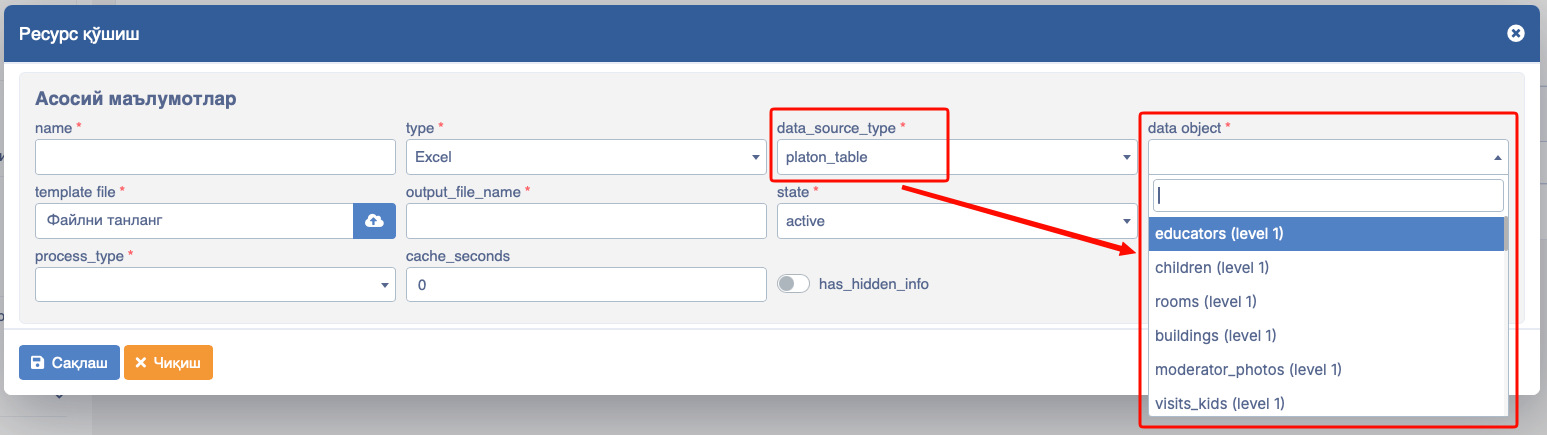
When the platon_table type is selected in data_source_type, an additional data object field opens in the modal window. In this opened field, the required table name is selected and entered for use in the export functionality.
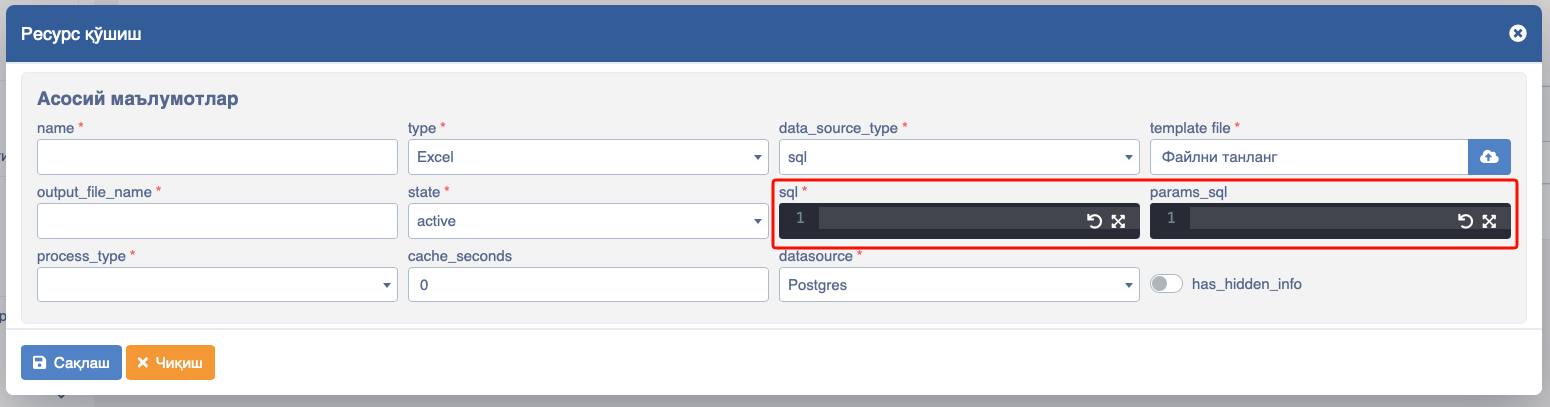
In the Export modal window, there is an opportunity to effectively use the sql and params_sql fields for database queries.
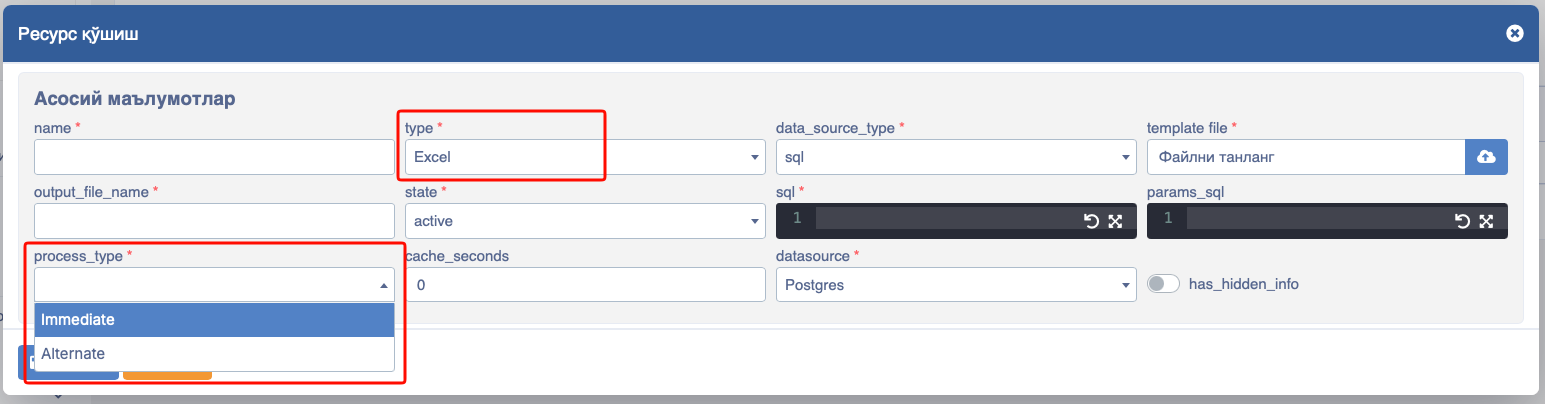
When the Excel type is selected in the type field in the modal window, additional fields open accordingly.
These are:
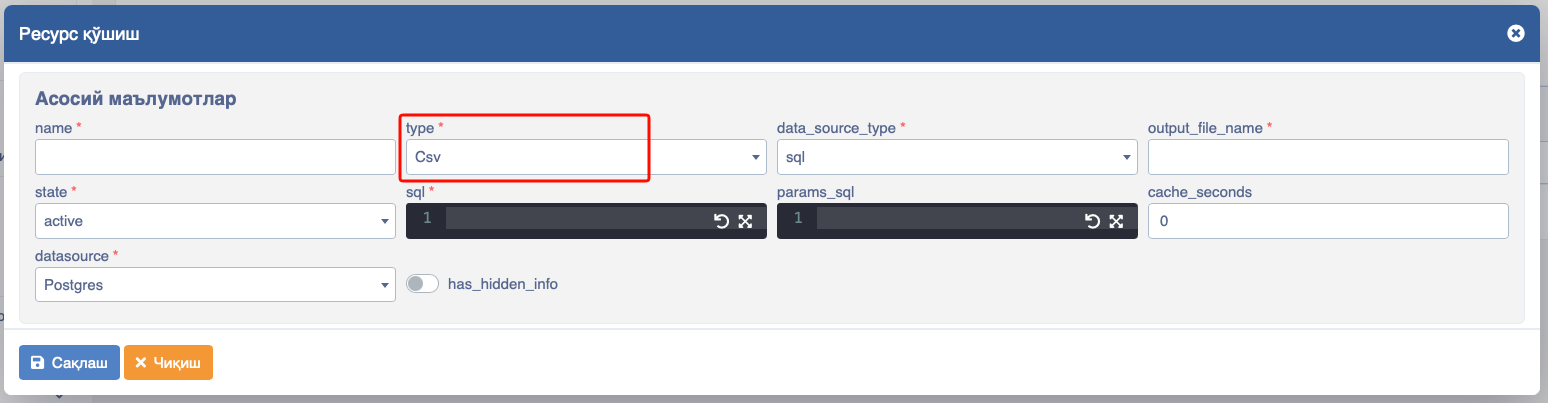
When the Csv type is selected in the type field in the modal window, the sql field is disabled/removed. In this case, a series of fields appear in the modal window.
These are:
- name - intended for a short name that correctly expresses the content of the resource.
- type - represents the format of the file intended for export and serves to display parameters corresponding to it.
- data_source_type - includes parameters such as sql, platon_table, and platon_api, representing the form in which the resource data is retrieved.
- data object - gives the opportunity to provide options via table names and select them.
- output_file_name - represents how the output file should be named.
- state - serves to express the state of the export resource.
- params_sql - intended to express query parameters in the database.
You can see its usage in the following example:
select coalesce(concat(t.name1, 'нинг'), '')             as org_name,
       coalesce(concat(t.name1, 'нинг'), '')             as org_name1,
       coalesce(t.name2, '')                             as org_name2,
       coalesce(concat(t.name3, 'ning'), '')             as org_name3,
       coalesce(t.name4, '')                             as org_name4,
       coalesce(#search, '')                             as search,
       coalesce(#org_id::bigint, $user.extraData.org_id) as org_id
from sm_orgs t
where t.state = 1
and t.id = $user.extraData.org_id- cache_seconds - this field serves the caching mechanism and represents the interval for updates. The data entered here must be expressed in whole (
int) numbers.
Practical Experience
Let's try using the information written above in a real project on the dev.realsoft.accademy site. For this, we first need to prepare a table and an Excel file. Our table looks like this:

If we have the table above, we then create an Excel file as follows:
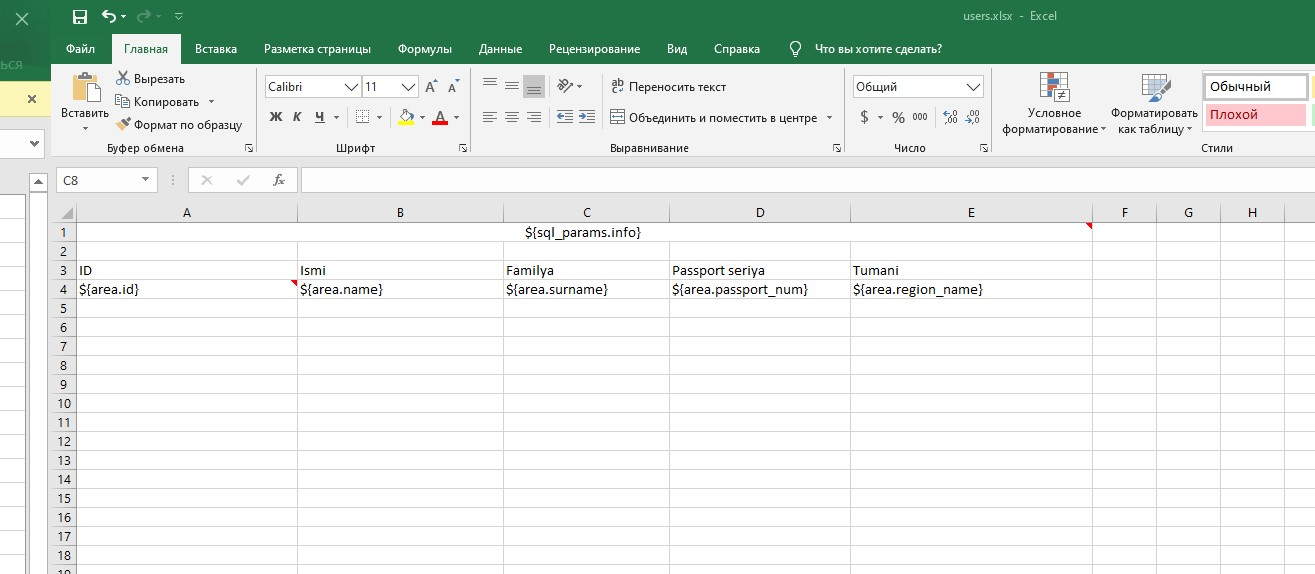
And we add notes (comments) to this Excel file.
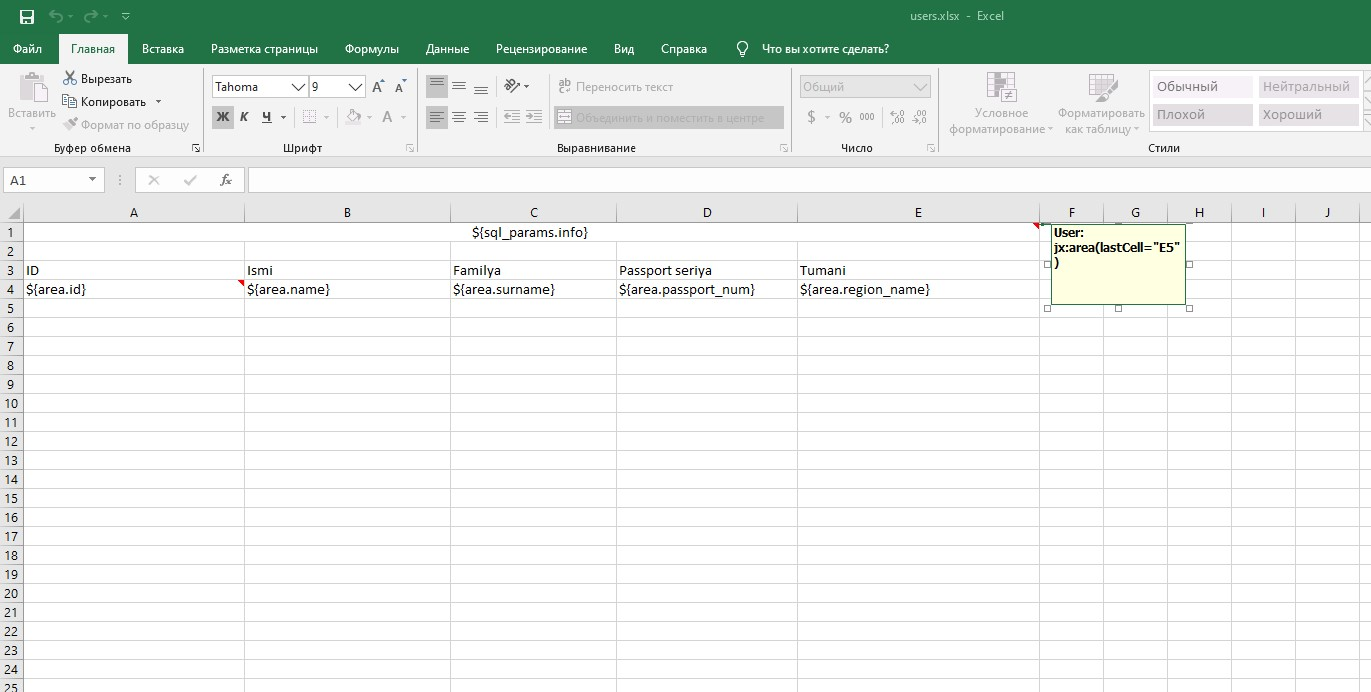
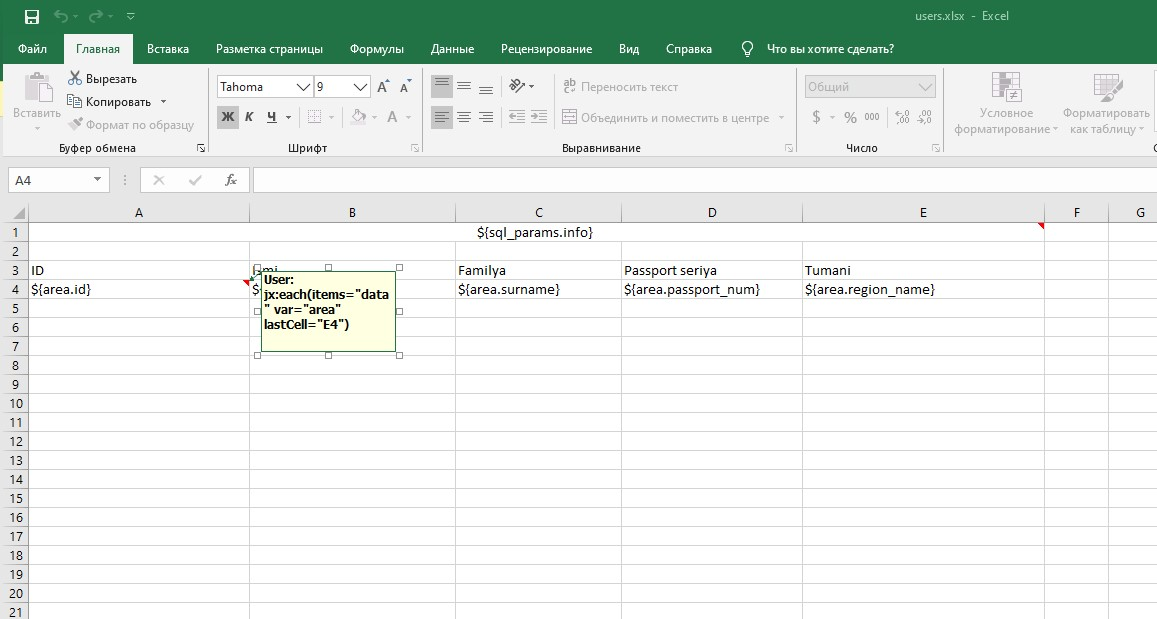
Once the Excel file is also ready, we create a new export from the export section:
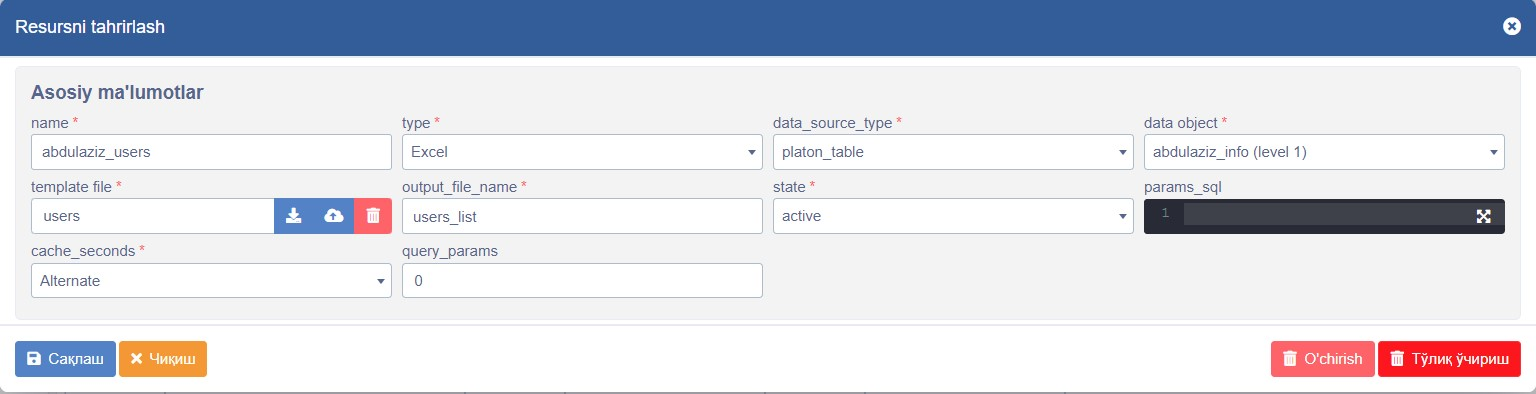
Now we connect this created export to the buttons in the table.
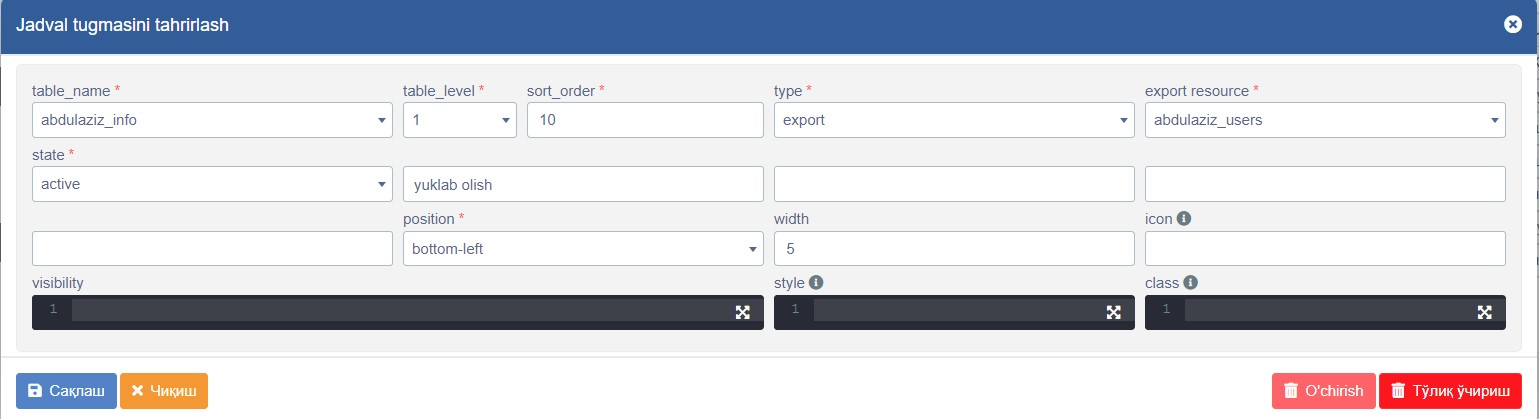
And when this button is clicked, we can see the Result.
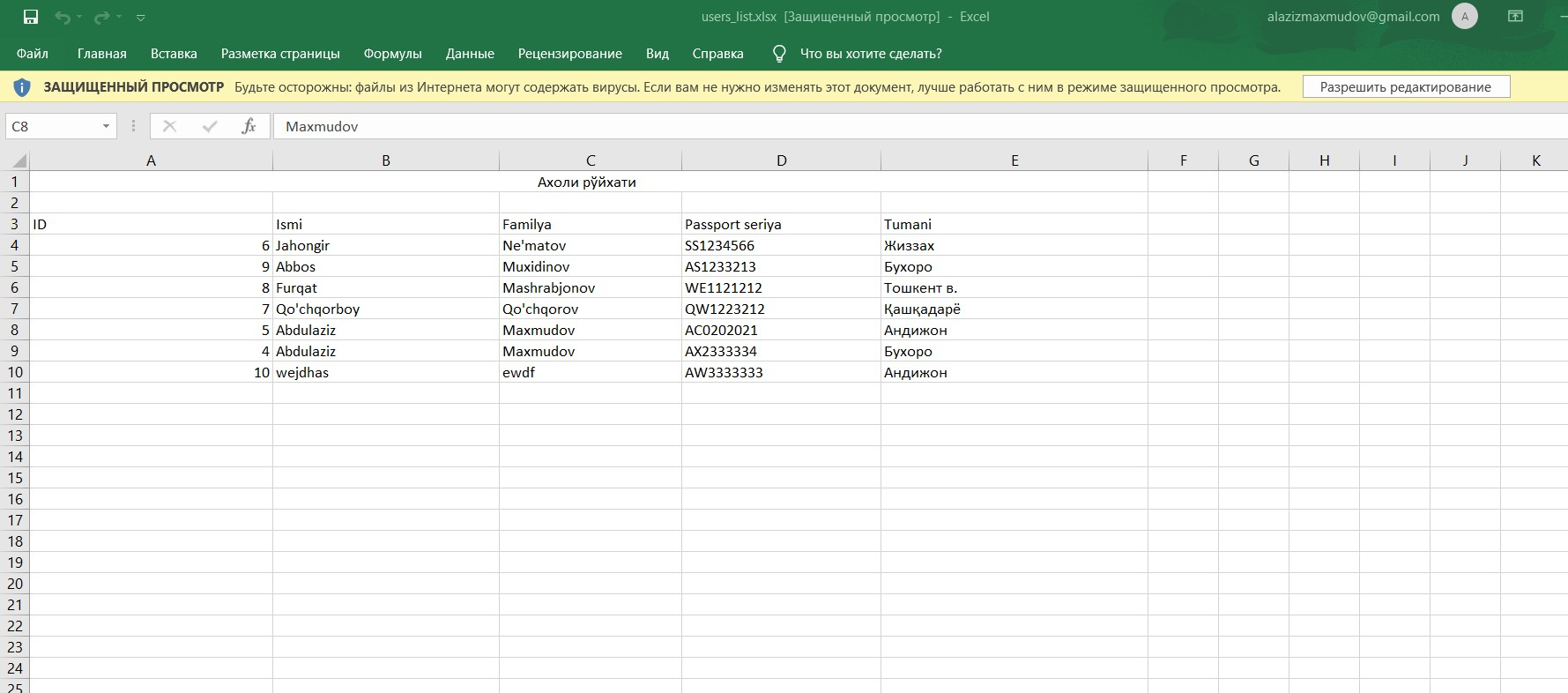
All necessary information is selected and filled in, and the Save button is clicked. In this way, the data entered for export is generated in the table, and any developer with permission to use it will have the right to utilize it.