Database Control
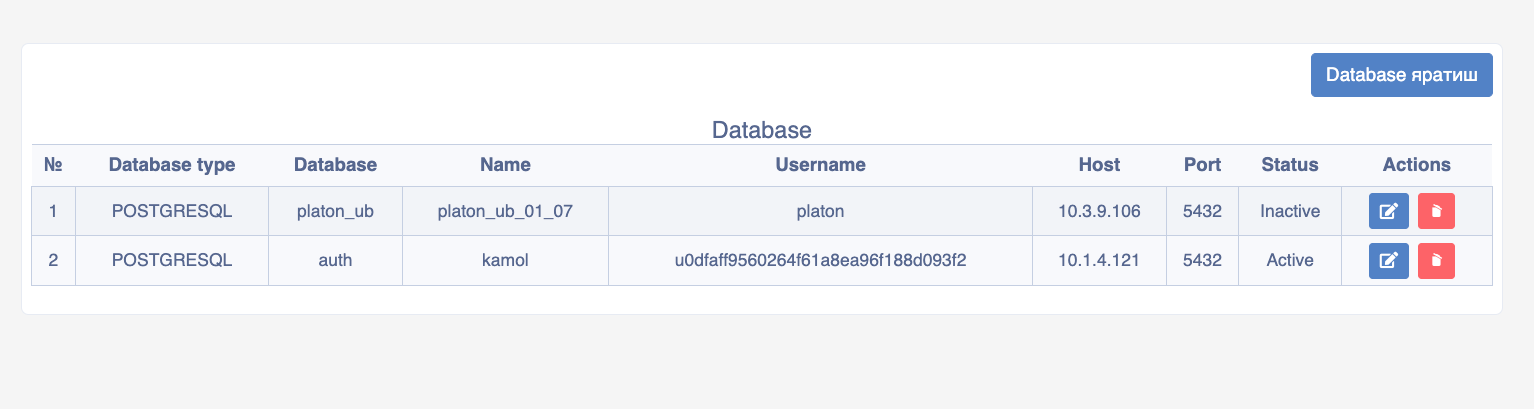
This section provides the ability to connect to and control the database for the application being created.
Database Control
The Database Control section allows developers to connect with databases of various types or on different servers. To navigate to this section, follow this sequence:
Main window -> System settings -> Database control
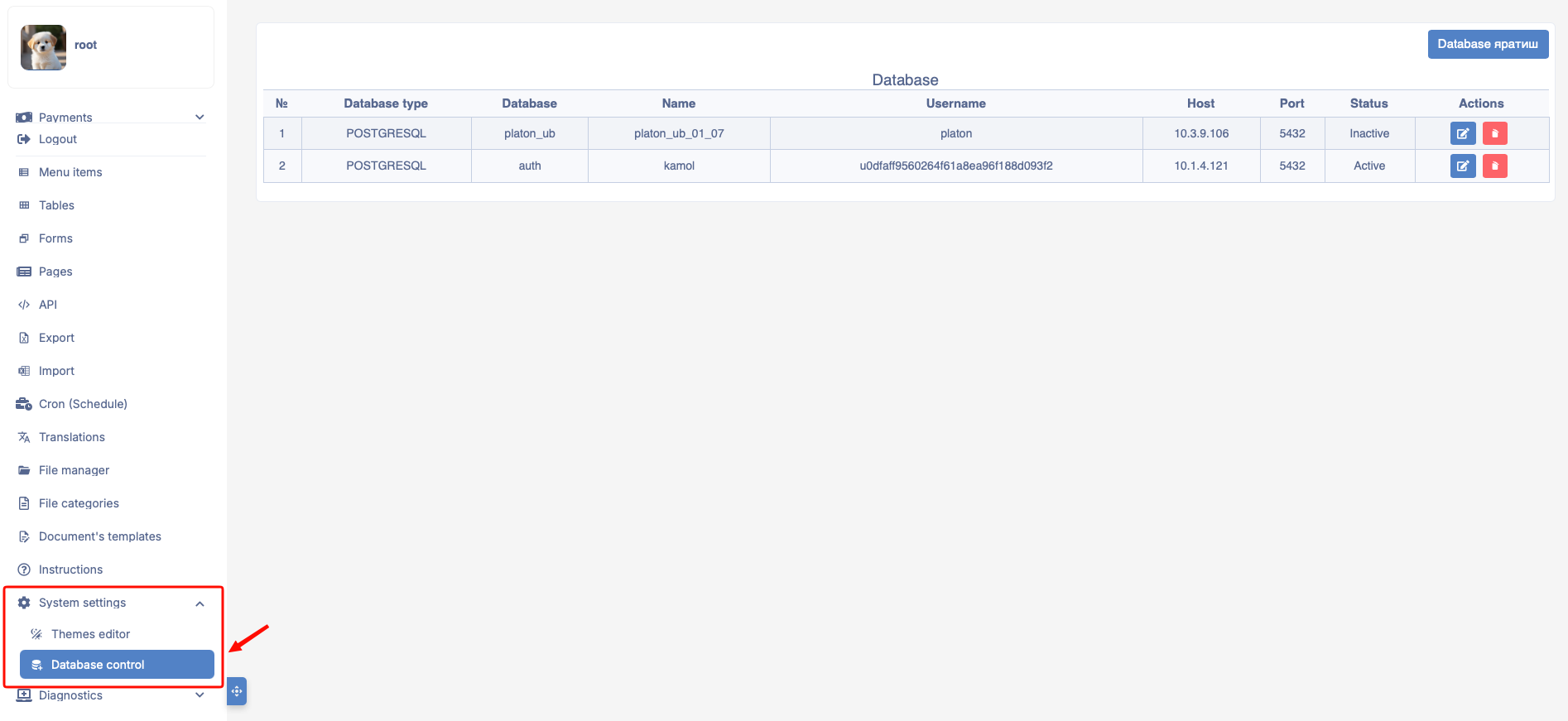
Creating a Database
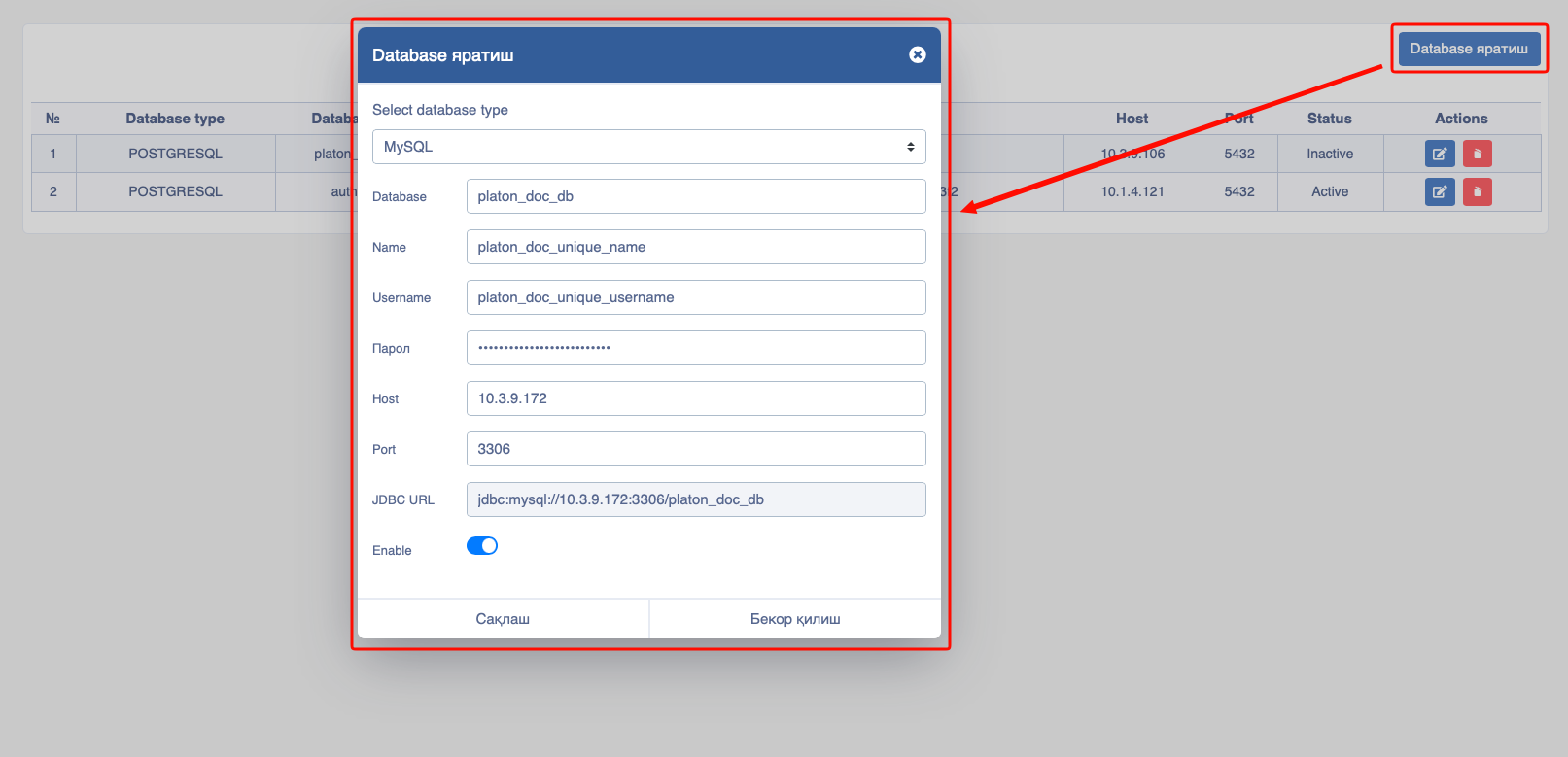
To add a database, the Create Database button should be selected, and then the following form will appear on the screen:
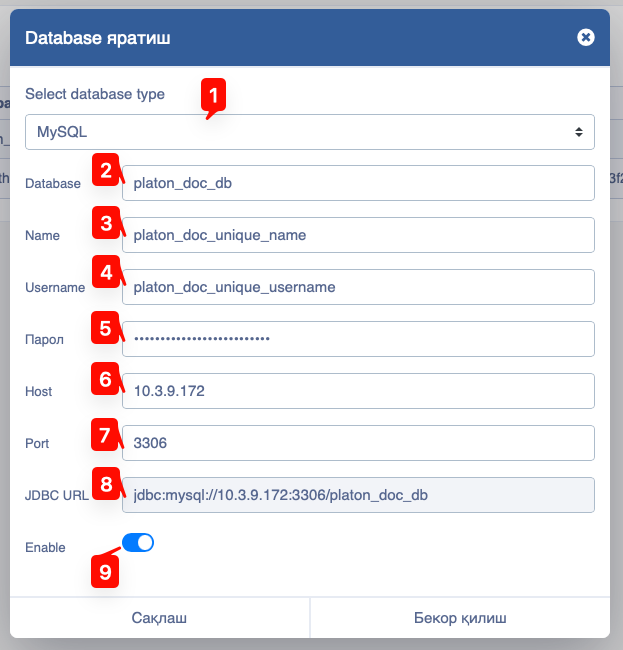
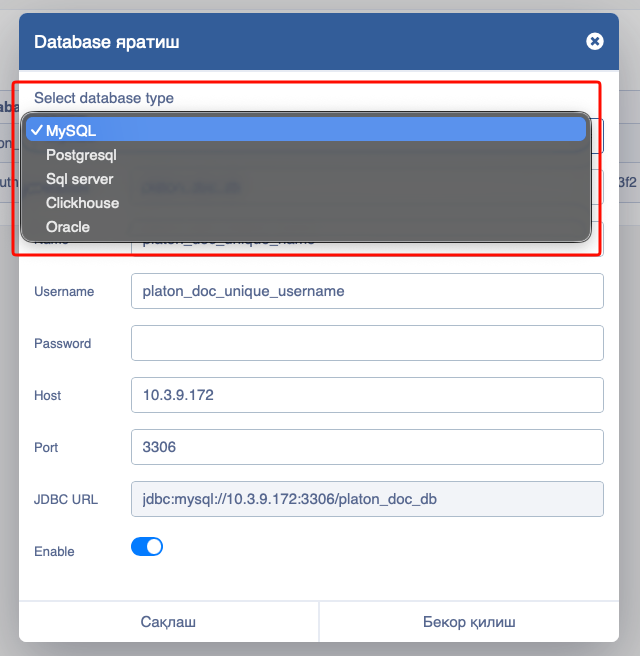
Select database type - The system provides the ability to connect with 5 types of databases:
MySQL - One of the popular open source relational database management systems (RDBMS), supported by Oracle Corporation.
PostgreSQL - An open source object-relational database system. It stands out for its reliability, strict compliance with standards (SQL compliance), and efficient processing of complex queries and large volumes of data. It is often used in complex backend systems.
SQL Server - A relational database management system developed by Microsoft. It is mainly widely used in corporate environments, large business systems, and projects integrated with .NET technologies. It uses the Transact-SQL (T-SQL) language.
Clickhouse - A column-oriented open source database designed for real-time analysis (OLAP) of large volumes of data. It operates several times faster than traditional row-oriented systems (MySQL, Postgres) in executing analytical queries.
Oracle - Oracle Corporation's flagship product, considered a reliable, secure, and scalable database.
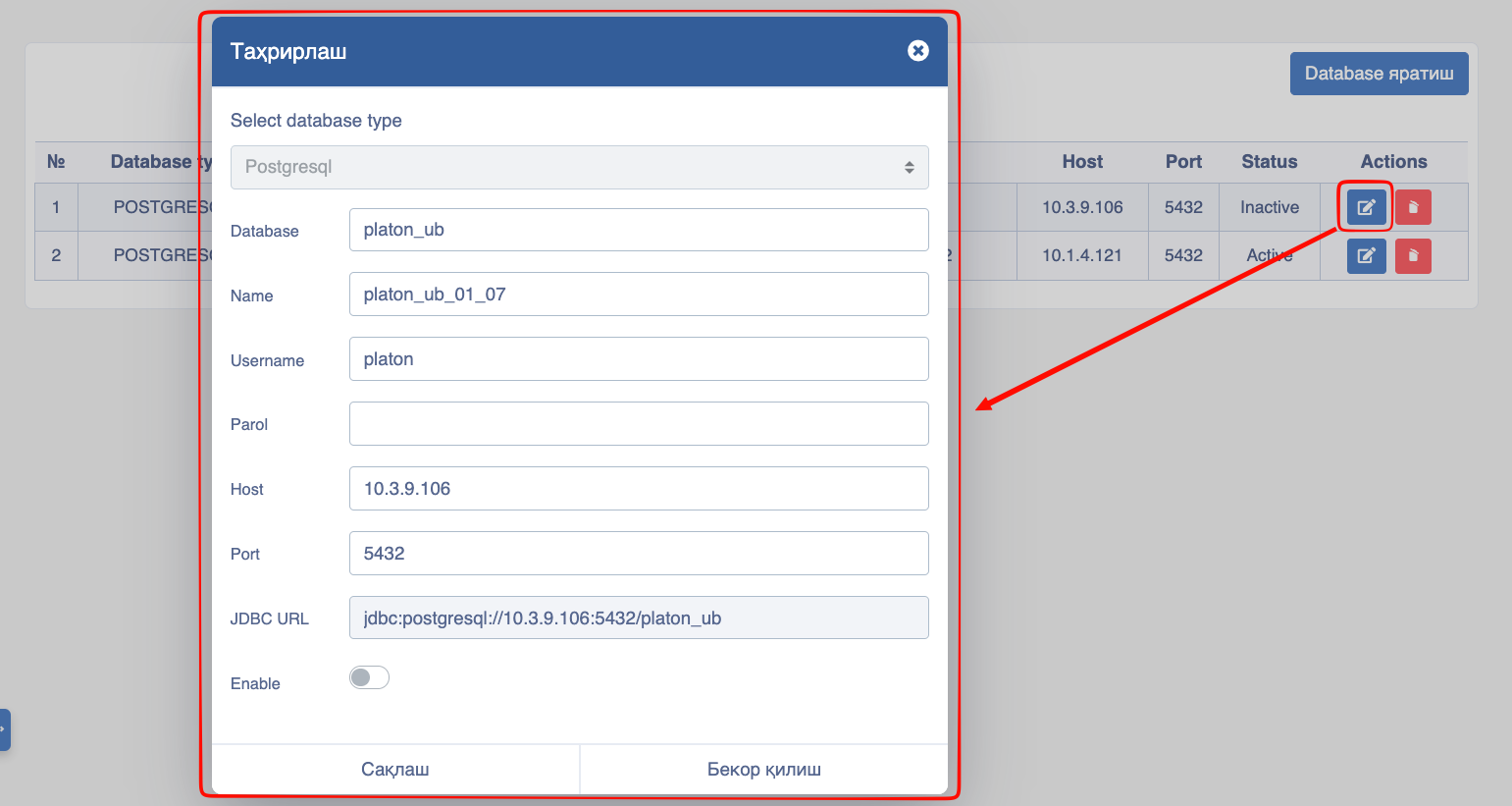
Database - Database name;
Name - Unique name, the system creates a configuration file with this name, so it should be unique (non-repetitive);
Username - Database username;
Password - Database user password;
Host - The host URI or IP address where the database is located;
Port - The host port where the database is located;
JDBC URL - Automatically generated JDBC address for connecting to the database;
Enable - A button that specifies whether to use or not use the database being created for the current application;
Editing a Database
From the Actions section, through the edit button (icon), you can customize the database configuration:
Deleting a Database
From the Actions section, through the delete button (icon), you can delete the database configuration:
